Copy a sample file to an external NTFS drive on Mac
SafeNTFS adds Finder write access for supported external NTFS drives on Apple silicon Macs running macOS 27 or later. The drive keeps its existing format for use with Windows.
The short answer
SafeNTFS adds Finder write access for supported external NTFS drives on Apple silicon Macs running macOS 27 or later. The drive keeps its existing format for use with Windows.
Follow a sample workflow
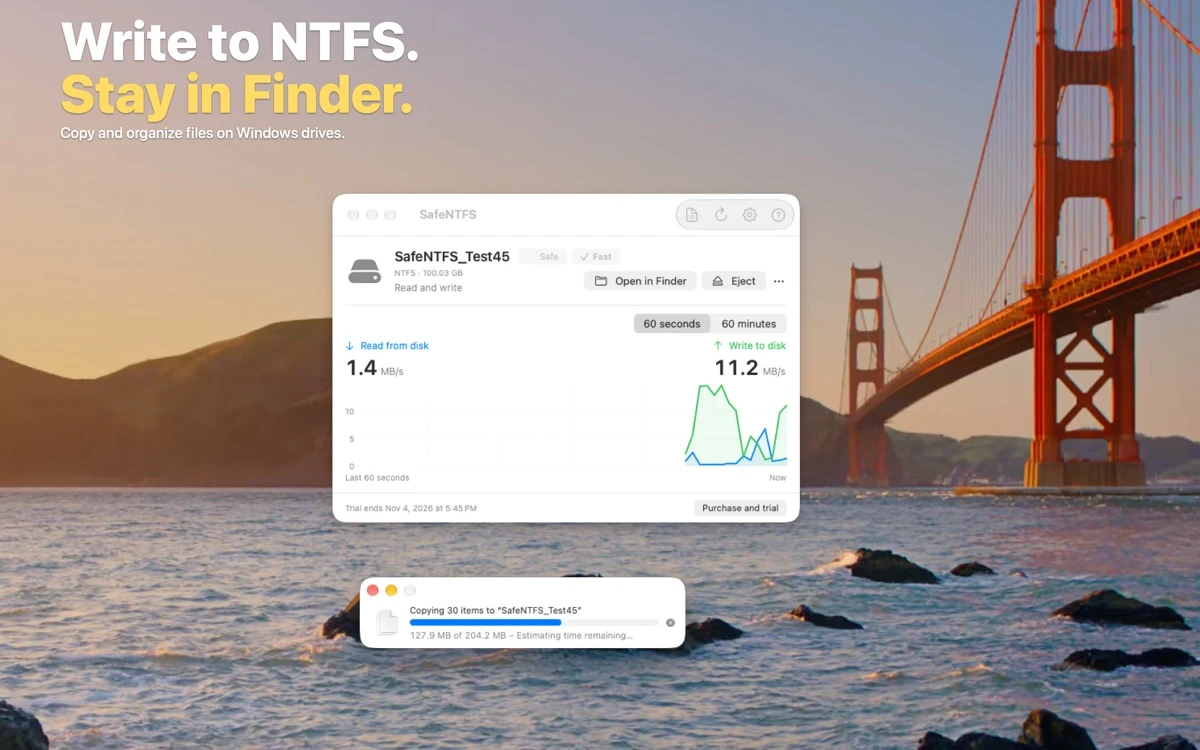
On a compatible Mac, review the setup instructions and confirm that the external drive is supported. Start with a backed-up drive and a disposable sample file.
After enabling the macOS file system extension and granting access to the selected drive, copy the sample in Finder. If you choose Safe mode, the publisher says it compares the data read back with the original.
Wait for copying to finish, eject from SafeNTFS and open the drive again on Windows. Check that the file appears and opens correctly.
Check price and access
Free download with a four-day NTFS writing trial. Continued writing is a one-time $9.99 purchase in the US Mac App Store.
There is no subscription, and the publisher says the trial ends without an automatic charge.
Limitations & considerations
- BitLocker volumes, EFS-encrypted files and WOF-compressed files are unsupported. A readback check cannot guarantee recovery after a disconnection or power loss. Transfer behavior was not tested on hardware.
Use the linked official pages for current platform, access and purchase conditions.
Sources & scope
Reviewed November 22, 2026. This editorial guide is based on publicly available publisher documentation and product images.
- App Store listing
Publisher information checked November 22, 2026.
- Official product information
Publisher information checked November 22, 2026.