How to Make a Photo Journal with PetaNote on iPhone and iPad
Choose a memory, add photos and a short note, then review and save your page. A beginner workflow based on the published English interface.
 PetaNote
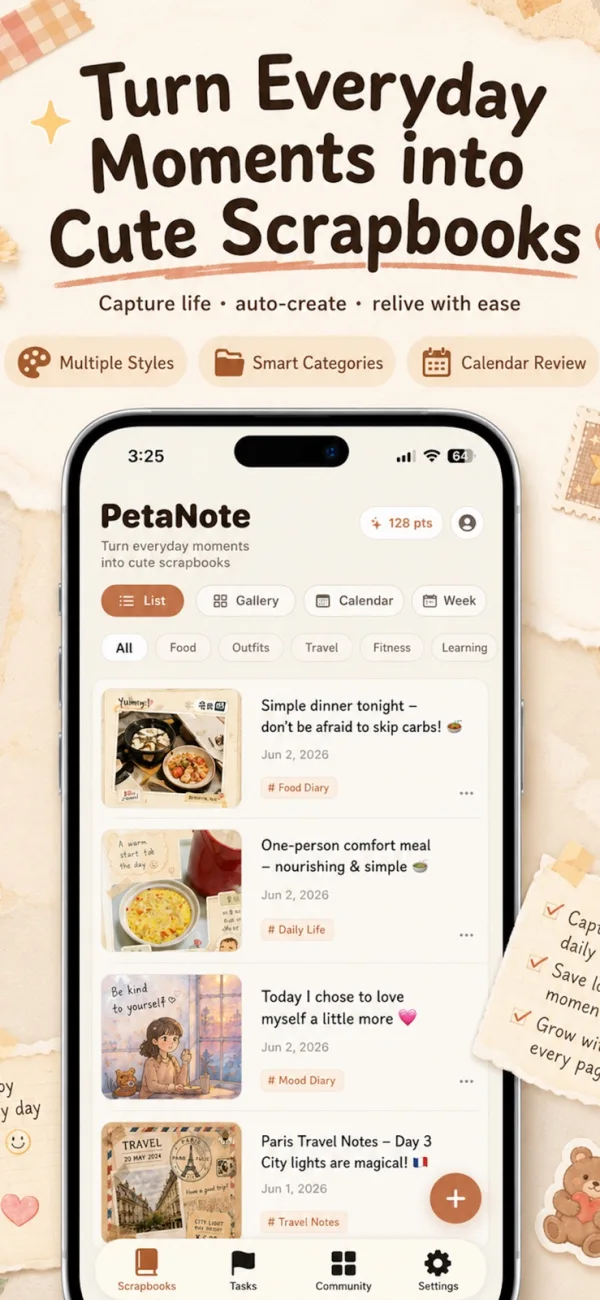 Step-by-step guide
The short answer
PetaNote documents a photo-and-note workflow for generating a scrapbook-style image. Start with one event, provide the details that matter, review the result and save a copy. This guide explains that method; the task overview compares it with manual layouts and photo diaries.
1. Pick a moment, not your whole camera roll
Use one event you can describe in a sentence. For a first page, a breakfast or afternoon walk gives the page a clear focus. Select a few relevant photos and leave unrelated images out. You do not need professional photography.
Use pictures you have permission to process. For an initial attempt, avoid private documents, children’s identifying details and anything you would not want sent to an external service.
2. Write the detail the photos cannot tell
Include the date, a place if appropriate and one personal observation. The sample note below is a writing example; use your own accurate details.
- Example note: “Sunday breakfast at home: an egg sandwich and coffee. A slow morning before our walk.”
- Prefer accurate details over a long decorative prompt. Keep the original note separately if the facts matter.
3. Add your photos and choose a visual direction
The published English iPhone image shows a + creation control on the List screen. Another image shows a sheet titled Choose Default Style, including Daily Scrapbook and Sweet Girl Sticker. These screenshots establish the named controls, not every intervening screen in the current release; follow the interface shown on your device.
The style image advertises 1-point options and 3-point options, with some styles free for members. Read the current cost shown before confirming; the published example does not establish the charge for every generation or retry.
4. Generate, then inspect the story
Look at the result as both a picture and a record. Can you read the caption? Are the date and names right? Did a face, a food item or another meaningful detail change? An attractive illustration can still be an inaccurate record.
If a result is unsuitable, check the terms before trying again. The reviewed sources do not establish whether every regeneration is charged. Do not assume a retry is free or that text can be edited in place.
5. Save a copy and check it in Photos
The listing describes saving generated pages to Photos and sharing them. Use the save or share action available in your release, then open the saved result outside the app. Check that it is the page you intended to keep and that the text remains readable when enlarged.
Saving a finished image is not the same as backing up an editable project or the whole journal. Retain the source photos and note. Before printing, verify the actual exported dimensions rather than relying on the screen preview.
6. Build a habit without making every entry a project
Record the memory while it is fresh, even if you finish the visual page later. One sentence is a useful record on a day when you do not feel like designing anything.
The listing describes calendar review. Use a consistent date in your own notes so a collection remains understandable even outside the app. Sharing a page publicly is optional to your journaling habit; check the destination before confirming any submission.
When another method is a better fit
If you need precise control over placement or an editable spread, compare manual editors in the task overview. If search, diary organization and portable archives matter more than the image, compare a diary workflow. You do not need to force every memory into the same tool.
Official screenshots and example
Supporting illustrations, not a recorded step-by-step device run.
See the apps, not just the feature list
Developer-published product images. Captions identify the platform and source; these are not our test captures.
PetaNote
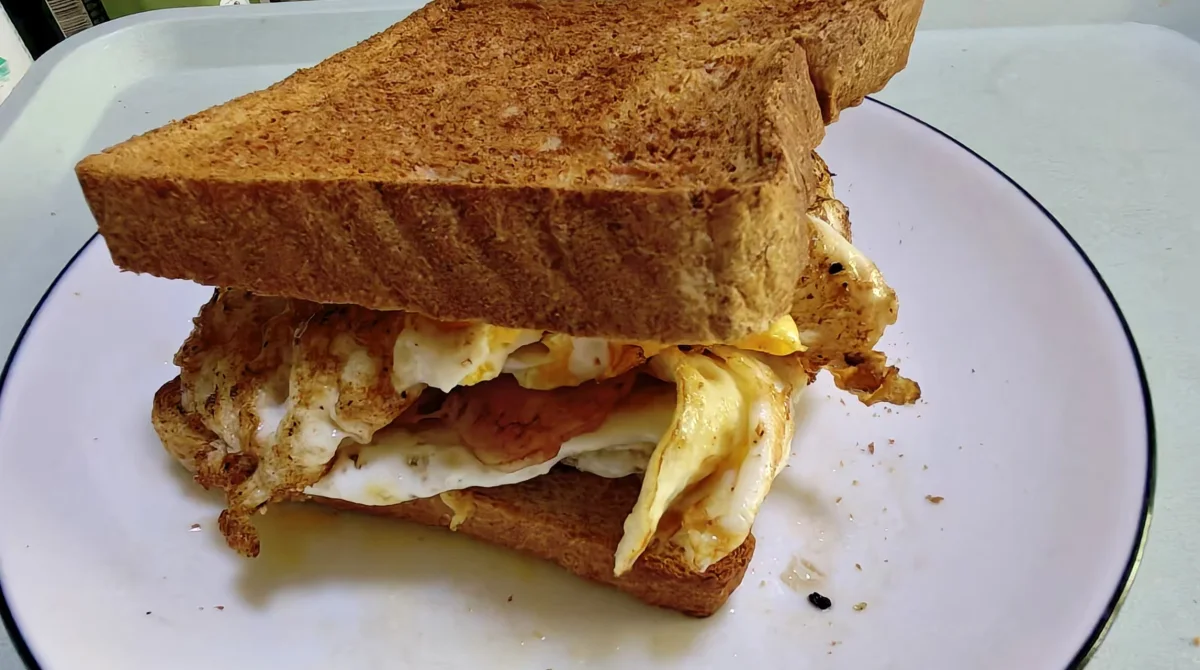
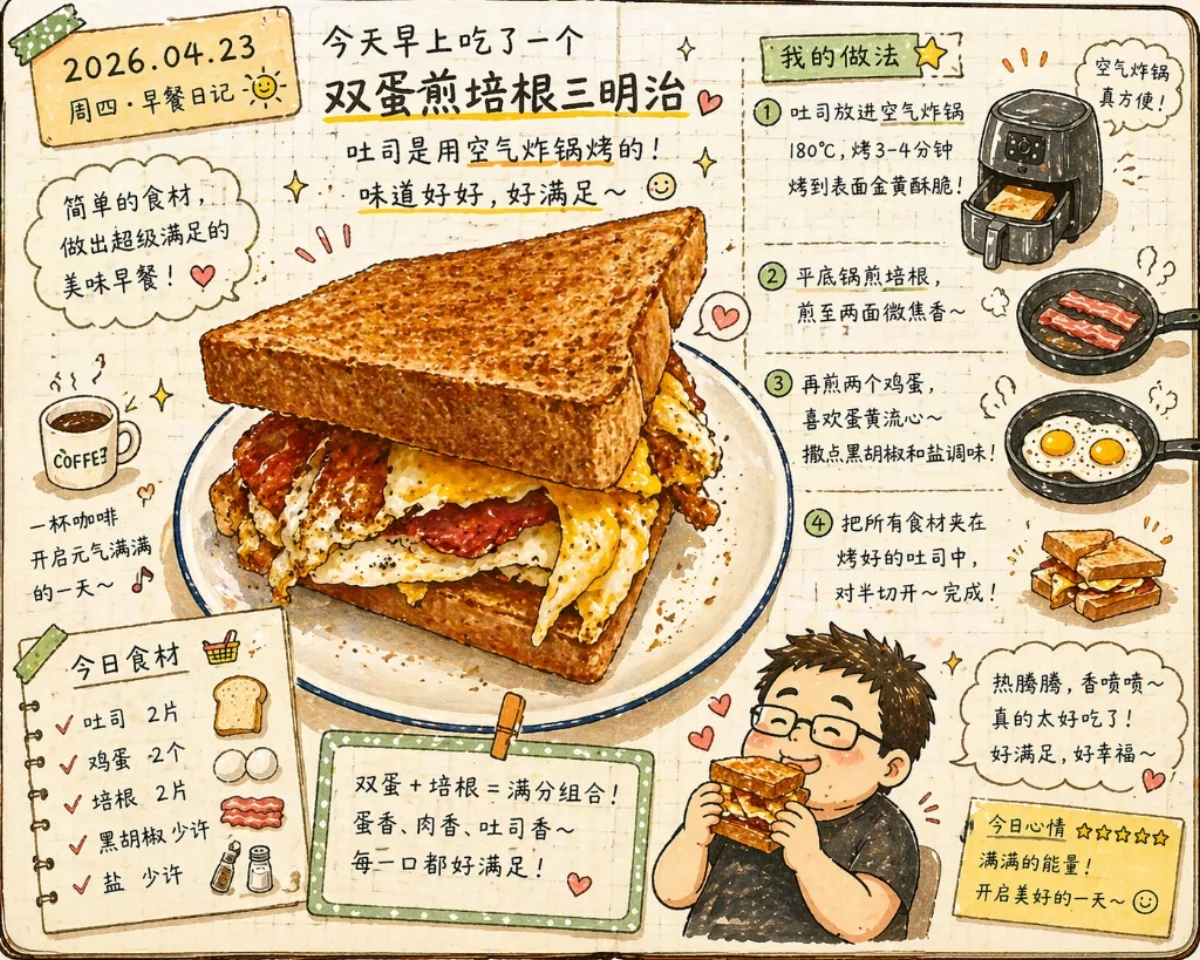
One moment, two versions
This developer-published breakfast example illustrates the kind of transformation being discussed. It is not our test, and the Chinese lettering does not demonstrate English output quality.
Limitations & considerations
- Generation can reinterpret a scene. Check faces, text and factual details, and keep the source photos.
- The published style picker advertises 1-point and 3-point options, with some styles free for members. Actual per-generation point cost, retry charging and member quotas still need confirmation; membership is not assumed unlimited.
- Layer editing, export resolution, watermark rules and whole-library backup are not established by the reviewed sources.
- English is listed, but generated English text accuracy has not been measured here. The policy allows server/partner AI processing; retention periods and deletion procedures are not specified.
Documented features, attributed opinions and explicitly labeled hands-on observations are different kinds of evidence. We do not infer unmeasured performance or privacy guarantees.
Sources & scope
Reviewed October 18, 2026. These are provider-published sources; listings and feature access can change. This article uses the linked documentation; any hands-on observations are separately labeled.
- PetaNote · US App Store metadata
Apple US metadata lists PetaNote, English support, iPhone/iPad compatibility and developer-supplied capabilities. This is not independent testing.
- Petanote · English product page and showcase
Developer examples of photo-to-journal generation, not our results. The FAQ still mentions beta; the dated App Store listing is used for availability.
- PetaNote · English privacy policy
Policy retrieved October 18, 2026: local-first storage, AI processing on servers or partner services, and separately submitted public works. These are provider statements, not a network audit.
No comments yet. Be the first to share your experience.