Save an article with GoodLinks and check offline access
A documented saving workflow plus the checks needed before relying on it offline.
 GoodLinks
 Step-by-step guide
The short answer
Use the GoodLinks share extension to save an article you can access, inspect the saved body, then reopen that copy offline before relying on it. These steps follow the official saving instructions.
Is this the right fit?
GoodLinks
iPhone · iPad · macOSKeep an Apple-native article library
Choose it for saved web articles, tags, highlights and Shortcuts-based workflows across Apple devices.
The tradeoff: Feature entitlement matters. It is not a guarantee that every interactive or paywalled webpage can be archived.
$9.99 app · optional $4.99 annual feature upgrade
US App Store · USD · 2026-10-18 · Plan details & source
Explore GoodLinks →Editorial selection advice based on the linked product documentation, attributed feedback and any explicitly labeled test results—not a universal winner.
See the apps, not just the feature list
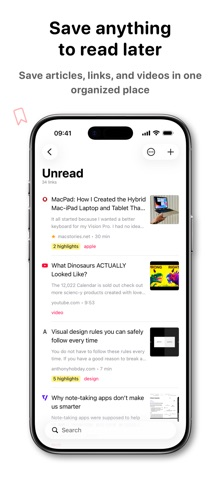
Developer-published product images. Captions identify the platform and source; these are not our test captures.
GoodLinks
What reviewers and users say
Our summaries of linked accounts—not our own experience or a vote-based ranking. Older versions and different platforms are labeled. Sources reviewed October 18, 2026.
MacStories · John Voorhees
GoodLinks 2.0 · older version-specific review
Voorhees values the combination of highlighting, notes and flexible Shortcuts exports, not just the reading view.
Read in context: His occasional sync delays involved developer-beta operating systems. They are not established current-release defects.
James Foley
Feb 2, 2026 · GoodLinks to Kindle
Foley describes using GoodLinks and Shortcuts to build a Kindle reading digest.
Read in context: This is a custom automation workflow, not a built-in one-tap Kindle sync promise.
How to read disagreement
Different opinions can reflect different jobs, versions, devices or paid plans. We do not call a few comments “the consensus.” A consequential factual conflict that remains after checking those differences is a candidate for a focused hands-on test. A preference for one interface over another usually is not.
Side by side
| Check | What counts as evidence |
|---|---|
| Saved article | End paragraph and image match the source |
| Offline access | Cold reopen with Wi-Fi and cellular disabled |
| Export | Actual output file opened outside GoodLinks |
1. Prepare a meaningful sample
Choose an article you are allowed to save and whose full text you can see in Safari. Note its URL and select one paragraph near the end as a completeness checkpoint. A paywalled preview or a dynamically loaded page is a poor first sample because it makes an incomplete capture harder to diagnose.
2. Send it from Safari
Open Safari’s share sheet and select GoodLinks. The official instructions explain adding GoodLinks through More and Edit if it is absent from the app row. Keep Quick Save disabled for the first run so you can inspect the saving interface instead of racing past it. Share-sheet placement depends on the operating-system version and your enabled extensions.
3. Inspect the result before disconnecting
Open the saved entry in GoodLinks. Compare its first and last paragraphs, headings and at least one image with the original. Add a distinctive tag and create one note that explains why the article is useful. Report a partial capture as partial; do not describe a visible title as a saved full article.
4. Separate local availability from synchronization
Check the installed build’s article and image settings. The App Store history describes a separately entitled Article Sync capability, so do not assume every existing purchaser has identical settings. A local copy on one device and an available copy on another are separate test outcomes.
5. Run the offline check
Wait for preparation to finish, close GoodLinks, disable both Wi-Fi and cellular and reopen the entry. Navigate to the checkpoint paragraph and image. Repeat after reopening the app rather than leaving an already-rendered page onscreen. If it fails, reconnect and record the relevant setting and error before retrying.
6. Keep an export of important articles
Use the available article and highlight export actions for material you need to keep. Inspect the exported text and retain its source link separately. Keep an independent export of material that matters; a saved thumbnail alone does not prove a complete archive.
Limitations & considerations
- Purchase includes current features and a year of feature upgrades; the optional upgrade subscription is not a requirement to retain already unlocked features.
- Interactive or paywalled pages may not save as complete articles. Confirm the saved copy before depending on it offline.
Documented features, attributed opinions and explicitly labeled hands-on observations are different kinds of evidence. We do not infer unmeasured performance or privacy guarantees.
Sources & scope
Reviewed October 18, 2026. These are provider-published sources; listings and feature access can change. This article uses the linked documentation; any hands-on observations are separately labeled.
- GoodLinks saving instructions
Official instructions for saving articles through the GoodLinks share extension.
- GoodLinks App Store listing
Developer-published capabilities, Article Sync history and US purchase listing; checkout not tested.
- GoodLinks Premium terms
Explains permanent access to unlocked features and optional later feature upgrades.
- GoodLinks offline-image release note
Documents the offline-image setting; not a device test.