Zotero PDFs Not Syncing to iPad: What to Check First
Find the missing link between the device that has the attachment, the storage server and the iPad that needs it.
The short answer
Start on a device where the PDF still opens. Confirm it is a stored attachment, check upload and storage errors, then check the iPad download. Reference data and PDF files sync separately; resetting the library is not the first fix.
Side by side
| What you see | Likely layer to inspect | Next check |
|---|---|---|
| Reference missing | Account or data sync | Correct account and library |
| Reference present, PDF absent | Attachment and file sync | Stored versus linked; upload status |
| Server has file, iPad cannot open | Download or client error | iPad sync error and Debug ID |
| PDF opens, shared notes absent | Annotation export | Export a copy with embedded annotations |
Name the two devices before changing settings
Call the device with the working file A and the iPad missing it B. Open the attachment on A now. If no device can open the file, you have a missing-source problem to resolve before you can diagnose a sync transfer.
Record one reference title and the exact error text. Work on that example until you understand the failure; changing the entire library makes the result harder to interpret.
Check stored attachment versus linked file
Zotero’s official troubleshooting starts by checking that a personal-library attachment is stored inside Zotero rather than linked to an external disk path. Linked files do not sync through Zotero and are not supported in its iOS app. On desktop, Tools > Manage Attachments > Convert Linked Files to Stored Files is the documented conversion route.
Try one attachment first, keep the original external file until you confirm the stored copy opens and syncs, then decide whether to convert more.
Check upload before blaming the iPad
On the source computer, inspect the sync error indicator and file-sync settings. For Zotero Storage, check the attachment through the online library to determine whether upload completed. With WebDAV, follow the provider-specific verification in Zotero’s troubleshooting page.
For a group library, do not assume a personal WebDAV arrangement covers its files. Zotero documents Zotero Storage for group file sync. Resolve quota, authentication and upload errors on A before repeatedly downloading on B.
Then inspect the iPad download
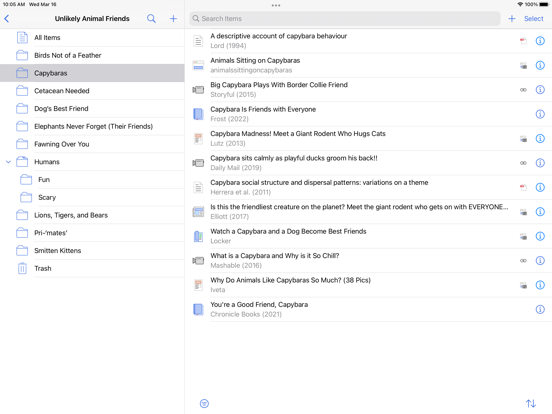
Pull down on the iPad item list to sync and read any error at the bottom. Open the same attachment, not just its parent reference. Confirm that the account and library are the intended ones.
If the server has the PDF and A has no unresolved error, collect an iPad Debug ID for an attempt to open the attachment as the official guide requests. Send the identifier and error through Zotero’s support route; keep private document contents out of a public post.
Do not confuse file repair with annotation export
A PDF can sync while a shared copy lacks the notes you expected. That is a separate question about how Zotero stores and exports annotations. Fix file access first, then use the annotated export route when sharing outside Zotero.
Before travel, reopen the essential file offline. A successfully refreshed library list does not establish that every attachment is available without a connection.
Limitations & considerations
- Menu names and availability depend on the installed system or app version; the linked documentation is the reference for current controls.
Use the linked official pages for current platform, access and purchase conditions.
Sources & scope
Reviewed October 25, 2026. Provider facts are attributed in each section. Examples, decision rules and quality checks are iApp4Me editorial guidance. Screenshots are credited provider illustrations unless a separate observation is explicitly identified.
- Zotero: stored and linked attachments
Official documentation; feature and version scope checked October 25, 2026.
- Zotero: attached file could not be found
Official documentation; feature and version scope checked October 25, 2026.
- Zotero: data and file syncing
Official documentation; feature and version scope checked October 25, 2026.
No comments yet. Be the first to share your experience.