Read and annotate a paper with Zotero on iPad
Keep a paper, its reference record and your annotations connected.
 Zotero
 Step-by-step guide
The short answer
Save a rights-cleared paper into Zotero, check its record, open the PDF and create annotations. Then verify the attachment and notes in the destination where you will use them. These instructions follow Zotero’s documented reference and annotation workflow.
Is this the right fit?
Zotero
iPhone · iPad · macOSKeep papers connected to citations
Choose a reference manager when author, publication and citation metadata matter as much as the PDF itself.
The tradeoff: An attachment sync workflow needs more planning than saving a link for later.
Free app · optional attachment storage
Vendor website · USD · 2026-10-18 · Plan details & source
Explore Zotero →Editorial selection advice based on the linked product documentation, attributed feedback and any explicitly labeled test results—not a universal winner.
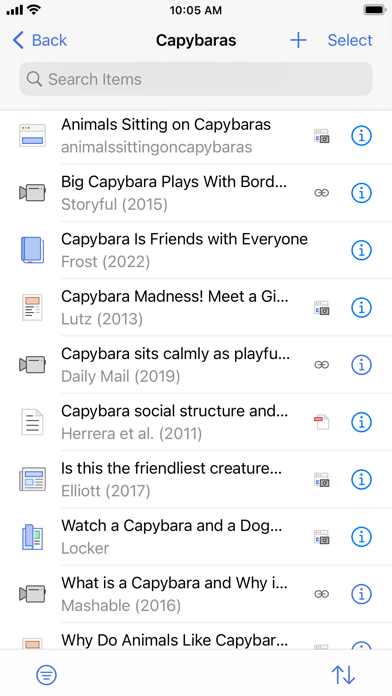
See the apps, not just the feature list
Developer-published product images. Captions identify the platform and source; these are not our test captures.
Zotero
What reviewers and users say
Our summaries of linked accounts—not our own experience or a vote-based ranking. Older versions and different platforms are labeled. Sources reviewed October 18, 2026.
r/zotero · nbpf-_- and participants
Historical iPadOS 18 discussion · version not stated
One researcher wants blank handwritten pages and better treatment of mathematical material; others value text highlighting and describe annotation-to-note workflows.
Read in context: A small, self-selected discussion distinguishes reference-library work from a freeform notebook. Reported limitations need current-version verification, not repetition as universal defects.
How to read disagreement
Different opinions can reflect different jobs, versions, devices or paid plans. We do not call a few comments “the consensus.” A consequential factual conflict that remains after checking those differences is a candidate for a focused hands-on test. A preference for one interface over another usually is not.
Side by side
| Layer | Required check |
|---|---|
| Reference | Correct title, authors and identifier |
| Attachment | PDF opens locally after disconnecting |
| Annotations | Highlight, note and ink survive intended round trip |
1. Choose a paper and check its reference
Use an openly licensed paper or a PDF you created yourself. Avoid confidential drafts and private participant data. Record the intended title, authors, year and identifier so you can spot import mistakes. A readable filename is not a substitute for a correct reference record.
2. Add the item and check the attachment
Zotero’s iOS documentation describes saving items and PDFs through the system share control. Use that route from an authorized source, then open the resulting item. Check whether both the bibliographic record and the PDF are present. If the item has metadata but no attachment, stop and diagnose it before describing the import as complete.
3. Make three different annotations
Open the paper on iPad and create a short text highlight, an explanatory note and an ink mark. Keep each on a known page so it can be checked later. The official documentation supports these annotation types, but the current controls and Apple Pencil behavior need device evidence.
4. Check synchronization in two parts
Verify the library record and the actual attachment separately. Zotero distinguishes metadata/data synchronization from file synchronization. A title appearing on Mac does not establish that its PDF is available offline. Record the storage arrangement and any quota warning without exposing credentials.
5. Inspect the writing and sharing outputs
On the computer, follow the documented annotation-to-note workflow if that is your intended destination. Do not label a desktop command as an iPad feature. Separately test sharing an annotated PDF and open it in another viewer; record which marks are visible and which remain application-specific.
6. Verify before travel
Open the paper locally on iPad, disconnect and reopen it. Check both the PDF and your latest annotations. This guide will become a verified walkthrough only after the recording and exported files are reviewed; no reliability or export-quality score is assigned in advance.
Limitations & considerations
- Metadata sync and attachment-file sync are different. Paid attachment storage is optional, not a license required to use Zotero.
- A reference library is not a freeform handwritten notebook. The cited iPad annotation discussion is not a current universal defect report.
Documented features, attributed opinions and explicitly labeled hands-on observations are different kinds of evidence. We do not infer unmeasured performance or privacy guarantees.
Sources & scope
Reviewed October 18, 2026. These are provider-published sources; listings and feature access can change. This article uses the linked documentation; any hands-on observations are separately labeled.
- Zotero for iOS
Documents iPad/iPhone libraries, saving and PDF annotations. Page has an older update date; current interface needs verification.
- Zotero syncing
Distinguishes free data syncing from attachment-file syncing and storage limits.
- Zotero PDF reader
Annotation-to-note workflow; desktop instructions must not be presented as iPad buttons.