Preview Forms and Markup: Fill, Sign, Highlight and Comment on Mac
Handle everyday PDF paperwork without printing, while keeping original-text editing and signing services separate.
The short answer
Preview can fill supported form fields, place text boxes and visible signatures, and add reading annotations. It cannot edit the existing body text of a PDF. Keep an editable working copy and inspect the saved result in the viewer the recipient uses.
Identify the job: form, comment or rewrite?
A form needs your answer in a field. A review needs a comment beside existing content. A rewrite needs the original text changed and the layout maintained. These may all be called PDF editing, but they require different tools.
Before installing a paid app, try the first two in Preview. For the third, obtain the source document if possible; changing the original word-processing file is often a cleaner workflow than reconstructing a PDF.
Fill an existing field, then fall back to a text box
Click a form field and type. If the PDF does not accept direct input, use the form-filling toolbar’s text-box tool. A box places an answer over the page; it does not create a reusable, logically structured form field. Enhanced AutoFill is documented for supported PDFs, not every form.
Example: on a flat application, add your name and date with separate boxes. Zoom in to align them and inspect the whole page again. Keep the response inside the intended field rather than reducing the font until it is unreadable.
Place a visible signature
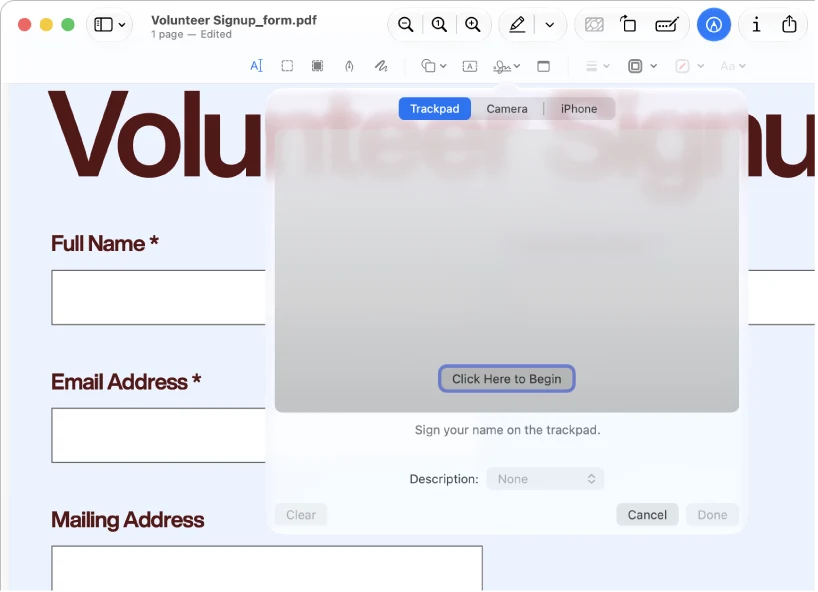
Open Markup > Sign and create or choose a signature. Apple documents capture through a trackpad, camera or supported iPhone/iPad route. Position the signature at the intended line and keep the final signed copy distinct from your blank source.
Ask the recipient which signing process is required. A visible signature image is not the same deliverable as a certificate-backed signature, a managed approval trail or a signing service’s verification record. Choose the required workflow rather than assuming every PDF signature has equivalent properties.
Apple: fill and sign PDF forms
Highlight with a purpose
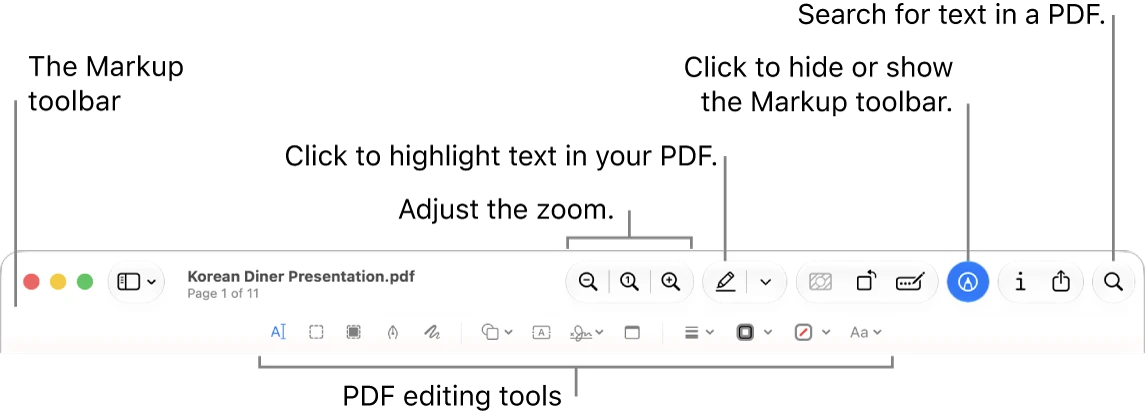
For selectable text, choose the relevant passage and apply a highlight, underline or strike-through using Preview’s text-marking controls. For an image-only page, a drawn shape may look similar without creating the same text-linked annotation.
For review, use one concise mark per issue. A strike-through should point to a proposed change, not suggest that the text has been permanently deleted from the document. When a reviewer needs the replacement wording, add it in a note.
Use notes for explanations, shapes for attention
Preview supports notes and speech bubbles as feedback. Put a reason in the note: “Please confirm this date” is more actionable than a large unexplained circle. Use arrows or boxes when spatial location matters, such as a diagram label.
If the recipient only sees a printout or flat image, ensure your important comments are actually visible there. Do not rely on a collapsed note icon to carry instructions that must be read on paper.
Keep editable annotations or create a flattened copy deliberately
Apple distinguishes saving/exporting a PDF with editable annotations from printing to Save as PDF to flatten them. Use the first route for ongoing review and a separately checked flattened copy only when that is the intended delivery.
Flattening is not a general sanitation guarantee and may change useful document behavior. Never use it as a substitute for checking redaction, forms, searchability or a recipient’s signature requirements.
When another app is useful
Preview covers many tasks people associate with a basic Acrobat reader or annotation app: filling a simple form, adding a visible signature and marking up a document. That overlap is about the job, not complete feature parity.
Use a dedicated PDF editor for changing original text or images, a form-authoring tool for designing reusable forms, and an appropriate signing workflow when the recipient requires one. For a library of academic papers with citation-linked notes, Zotero solves a different problem from opening loose PDFs.
Check the completed copy
Reopen the final file. Inspect names, dates, checkboxes, text-box alignment and signature position. If the document has several pages, inspect every page that contains a response. Test on a second viewer when the recipient’s workflow matters.
Keep blank, working and delivered copies separately. That prevents an old signature or answer from leaking into the next application and makes corrections easier to explain.
Limitations & considerations
- Menu names and availability depend on the installed system or app version; the linked documentation is the reference for current controls.
Use the linked official pages for current platform, access and purchase conditions.
Sources & scope
Reviewed October 25, 2026. Provider facts are attributed in each section. Examples, decision rules and quality checks are iApp4Me editorial guidance. Screenshots are credited provider illustrations unless a separate observation is explicitly identified.
- Apple: fill and sign PDF forms
Official documentation; feature and version scope checked October 25, 2026.
- Apple: annotate a PDF
Official documentation; feature and version scope checked October 25, 2026.
- Apple: highlight and underline
Official documentation; feature and version scope checked October 25, 2026.
- Apple: PDF notes
Official documentation; feature and version scope checked October 25, 2026.

No comments yet. Be the first to share your experience.