How to Make a Photo Collage on iPhone
Use a simple Shortcuts sequence for repeatable combinations, or a template editor when the page needs text and independent frames.
The short answer
For a simple collage, create a shortcut with Select Photos, enable multiple selection, add Combine Images with the arrangement you want, then add Save to Photo Album. Run it on a few photos and inspect the saved result. Use a design editor such as Canva when you need captions or more flexible layout.
Side by side
| Your situation | Useful route | Check before choosing |
|---|---|---|
| Basic horizontal, vertical or grid layout | Shortcuts sequence | Multiple selection and arrangement |
| Captions and independent frames | Canva design | Free assets and final export |
| Result looks wrong | Inspect saved copy and input order | Keep original photos and editable source |
Choose the arrangement before choosing the pictures
Decide whether the image should be a horizontal comparison, a vertical sequence or a grid. Pick photos with a similar visual weight so one dark or tightly cropped image does not overwhelm the others. Keep a short story or comparison in mind rather than adding every available photo.
Choose the destination shape too. A wide layout may work in a document but appear tiny in a phone feed. If the result needs a title or annotations, plan where the text will go before cropping important details out of the source pictures.
Build the image-combination shortcut
In Shortcuts, create a new shortcut and add Select Photos. Expand that action and enable multiple selection. Add Combine Images, choose horizontal, vertical or grid when offered, and set spacing if the installed action exposes it. Finish with Save to Photo Album.
Run the shortcut using two expendable copies first. The actions form an editorial recipe built from Shortcuts image-selection, transformation and save operations; names and expanded controls can differ by system language or version. The visible output to verify is a newly saved combined image in Photos.
Run it with a small source set
Run the shortcut and select two to four photos. Confirm the selection and let the sequence save the result. Open Photos and locate the newly saved combined image. Check the order, spacing and whether any important part of a photo has been cropped.
If the order is wrong, change how you supply or arrange the input rather than repeatedly saving the same unwanted layout. If the images have very different proportions, make suitable copies first or use a design editor that lets you adjust each frame independently. Keep the original photographs untouched.
Use a template editor for captions and flexible framing
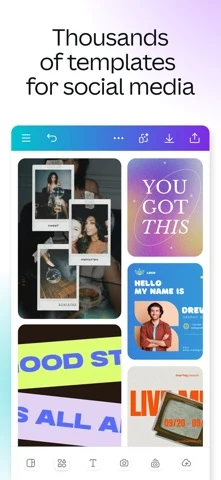
For a designed page, choose a collage template in Canva, add your own photographs and adjust each frame. Replace sample text with your caption and remove unnecessary decoration. Canva’s documentation separates free assets from premium elements, so inspect the template before relying on a free export.
Make the hierarchy visible: one main image or title, then supporting images. Align margins and use a consistent gap. More decorative elements do not automatically make the story clearer. On a small phone screen, a few well-sized images usually communicate better than a dense page of tiny frames.
Image source and original context
Save a usable final copy
Download or save the finished collage and open it outside the editor. Check the actual dimensions and text readability. If you are sharing it through a messaging app, keep a full-quality copy before that app recompresses it.
Retain the shortcut or editable design for later changes. A final flattened image is convenient to share, while the editable source is what lets you replace a photo or correct a caption. Keeping both prevents a quick collage from becoming a one-off layout you cannot revise.
If the collage does not look right
If the image order is wrong, inspect the selected input order and the shortcut’s arrangement before saving another copy. If one image dominates the grid, crop copies of the source images to compatible proportions or use independent frames in a layout editor.
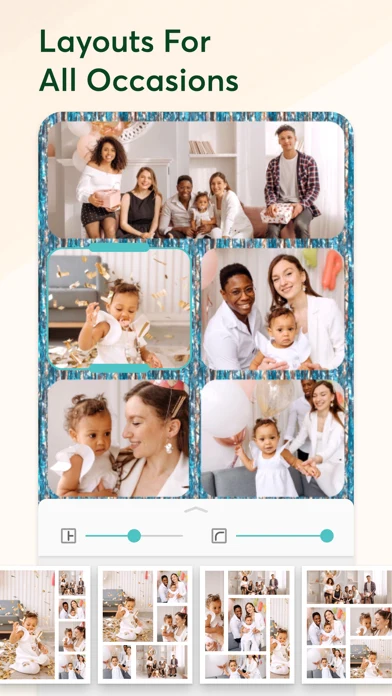
PicCollage’s pictured frame controls illustrate the second route. It is a different editor from the Shortcuts recipe above; the screenshot should not be read as a screenshot of Shortcuts. Keep the editable design or shortcut as well as the final flattened image.
Limitations & considerations
- Check current access and purchase terms for your country and account before paying.
Use the linked official pages for current platform, access and purchase conditions.
Sources & scope
Reviewed October 24, 2026. Product facts follow the linked provider documentation. Selection advice and example prompts are iApp4Me editorial guidance. Screenshots and provider examples are credited beside each image. Availability and plan terms are dated October 24, 2026.
- Apple: transform actions in Shortcuts
Documents Combine Images as a transform action.
- Canva: photo collage maker
Collage workflow, free versus premium assets and watermark conditions.
No comments yet. Be the first to share your experience.