How to Set Up an iPad Photo Booth for an Event
Prepare the physical station, capture layout and delivery route as one continuous guest experience.
The short answer
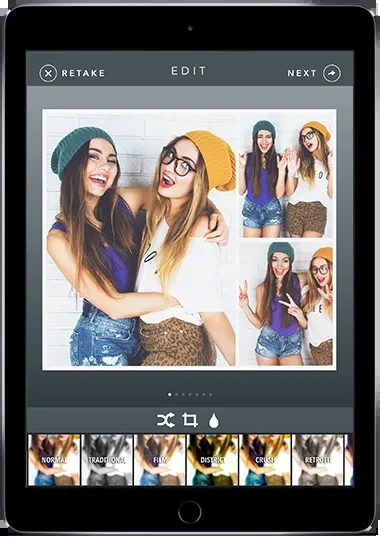
Mount the iPad securely, face it toward even light, configure a short capture sequence and choose a delivery method before guests arrive. Use a real sample capture to check framing, layout and the final print or download. Prepare a digital fallback if the printer or connection fails.
Side by side
| Your situation | Useful route | Check before choosing |
|---|---|---|
| Poor lighting or framing | Fix the physical station first | Single guest and group framing |
| Printed strips required | Verify the full print chain | iPad, printer, connection and paper |
| Connection or printer failure | Use a prepared digital fallback | Offline capture is not always offline delivery |
Set up the space and the camera height
Choose a location away from direct backlight and heavy foot traffic. Leave room for guests to step back, groups to assemble and a queue to form without blocking the venue. Keep the background simple so faces remain the focus.
Mount the iPad on a stable stand at a height suited to the guests. Frame both a single person and a small group. Check the light at the time of day the event will run; a bright window can change the result substantially. Route the power cable so it does not create a trip or pull hazard.
Choose the capture and layout workflow
Dedicated iPad booth products such as Simple Booth HALO and Booth.Events organize capture and guest delivery rather than just applying filters to an existing photo. Choose the product route that fits the event’s duration, branding and equipment.
Create a start screen, a short countdown and a layout with enough room for the photograph. Keep any event name or logo clear of faces. If the template includes several frames, confirm the capture sequence and the order in which images appear. Avoid adding a complicated choice screen before guests know what to do.
Connect delivery before adding decorative effects
For digital delivery, choose the product’s supported guest-retrieval route and rehearse it on another phone. Offline capture, queued upload and immediate guest delivery are different capabilities. Confirm which part can continue without the venue’s internet connection.
For Booth.Events direct USB printing, use a supported M1-or-newer iPad, powered USB-C hub and compatible printer. The provider says the USB Printer Drivers switch may require app 1.58.0 or later. Check the switch and hardware before editing a print template; a layout change cannot fix an unsupported connection.
Rehearse one complete guest journey
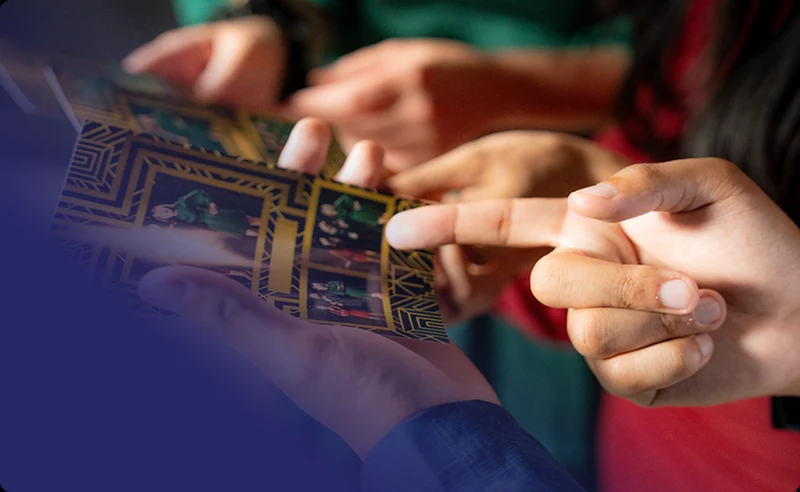
Start from the idle screen, capture the photographs, review the generated layout and obtain the result using the same method a guest will use. Check readable text, faces, image order and any crop. If you print, inspect the physical copy rather than the queue status alone.
Repeat the sequence enough to understand how the station returns to the start. Keep the controls that guests need obvious and administrative controls out of the way. Prepare a short instruction card only if the interface leaves an unavoidable question; a long instruction sheet often indicates that the flow needs simplifying.
Image source and original context
Make a one-page event handover
Record the station name, charging arrangement, template/paper size, delivery route and the person who handles faults. Add one recovery instruction: if printing stops, preserve the captured sessions and direct guests to the chosen digital retrieval route.
Before opening the booth, complete this sequence with the actual equipment: idle screen → capture → saved layout → guest download or physical print → return to idle. After the event, check pending uploads before shutting down the station and review whether the software plan renews.
Limitations & considerations
- Check current access and purchase terms for your country and account before paying.
Use the linked official pages for current platform, access and purchase conditions.
Sources & scope
Reviewed October 24, 2026. Product facts follow the linked provider documentation. Selection advice and example prompts are iApp4Me editorial guidance. Screenshots and provider examples are credited beside each image. Availability and plan terms are dated October 24, 2026.
- Simple Booth: iPad photo booth apps
HALO and Classic product positioning.
- Simple Booth: software plans
Booth licenses, plan access and event-term billing.
- Booth.Events: plans and features
Offline and guest-experience features in the provider plan table.
- Booth.Events: USB printing
Supported printing routes and iPad hardware qualification.
No comments yet. Be the first to share your experience.