How to Remove a Photo Background on iPhone and Save a Transparent Image
Lift the subject, choose a destination that preserves transparency and check the saved image on a contrasting background.
The short answer
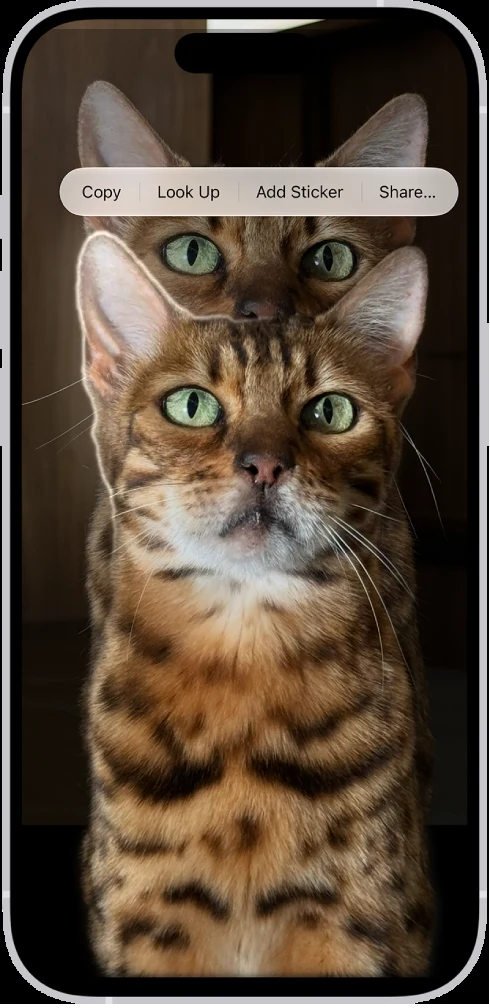
Open a suitable photo full screen, touch and hold its subject, then use the available Copy or Share action. Send the cutout to an app or file workflow that preserves transparency. Open the saved result on a contrasting background; a white preview alone does not establish whether the background is transparent.
Side by side
| Your situation | Useful route | Check before choosing |
|---|---|---|
| Subject highlights correctly | Copy or share the cutout | Choose the intended destination |
| Saved image appears white | Inspect over a contrasting background | White preview may just be a display choice |
| Native selection fails | Use a suitable alternative or clearer source | Keep originals and transparent master |
Start with a clear subject and the right expectation
Choose an image where the subject is reasonably distinct from the background. Fine hair, glass and overlapping objects can make the boundary more difficult. Keep the original image so you can try another route if the automatic selection leaves important details behind.
Apple’s guide describes subject lifting in Photos and other supported contexts. Feature availability depends on the device, system and image. If the subject does not highlight, check the current support information and try a clearer image rather than assuming a separate paid app is immediately necessary.
Lift and copy or share the subject
Open the photograph full screen and touch and hold the subject until the selection outline appears. Apple documents copying the subject, dragging it to another app and using a sharing action. Choose the route that fits what you want to do next.
For a document or message, copying and pasting may be sufficient. For a reusable design asset, choose a destination that can save the cutout as an image with transparency. Do not confuse making a sticker with exporting a general-purpose transparent master; the intended use and saving route differ.
Keep transparency through the next step
Transparency can be lost when the cutout is placed onto an opaque canvas or exported through a format that cannot store it. If a file workflow offers PNG, use it for a transparent master, then inspect the actual saved file. A filename extension alone is less useful than checking the resulting image.
Keep the cutout separate from any new background you add. This lets you reuse the subject on another design later. If you need a white-background product image, create that as a separate flattened copy rather than replacing the only transparent version.
Check the result with a visible contrast
Place the saved image over a dark or colored surface in a suitable editor. Look for a remaining rectangle, a white halo or missing parts of the subject. A preview app may display transparency against white, so the preview background is not a reliable verdict by itself.
Inspect the edges at the size you will actually use. A small social post and a large product graphic have different tolerance for imperfect boundaries. If the automatic lift fails on an essential detail, choose another source or a tool with appropriate edge refinement rather than repeatedly exporting the same cutout.
Use a web alternative when the native route does not fit
Adobe’s current background-removal page offers another route through its web flow. It can be useful when the native feature is unavailable or when you want to continue in a browser-based design workflow. Check the current upload and export conditions before sending a large batch.
The result still needs inspection. A tool name does not guarantee perfect hair, fabric or transparent-object handling. Save the original, the transparent master and any flattened delivery copy separately so later changes do not require repeating the whole removal process.
Limitations & considerations
- Check current access and purchase terms for your country and account before paying.
Use the linked official pages for current platform, access and purchase conditions.
Sources & scope
Reviewed October 24, 2026. Product facts follow the linked provider documentation. Selection advice and example prompts are iApp4Me editorial guidance. Screenshots and provider examples are credited beside each image. Availability and plan terms are dated October 24, 2026.
- Apple: lift a subject from a photo on iPhone
Touch-and-hold, copy, drag and share subject workflows.
- Adobe: free background removal
The checked URL now presents the Firefly background-removal flow.
No comments yet. Be the first to share your experience.