Get the pictures out of your PDF.
Choose the right approach.
One picture, every embedded image, or the whole page? Start with the result you need—not an app name.
Which result do you need?
For individual pictures, investigate an embedded-image extractor. To keep text and layout together, use page-to-image conversion. For a quick visual reference, a cropped screenshot may be enough—but it is not the embedded source image.
Which app fits your job?
PDF Extractor
iPhone · iPadExtract selected pictures on iPhone
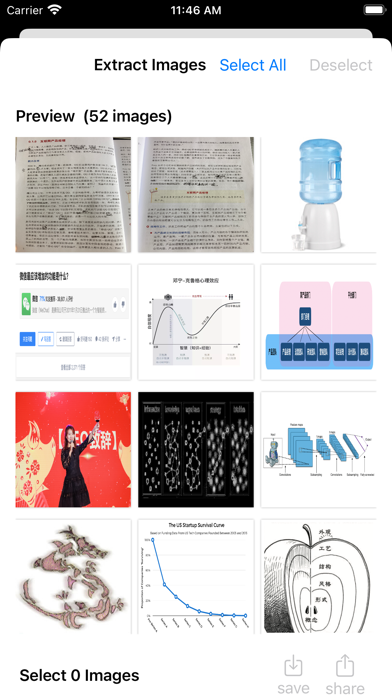
Choose it for a focused picture-selection workflow rather than a full PDF editor. Our small iPhone sample saved four images together to Photos.
The tradeoff: Transparency was lost in the returned sample. Do not choose this save path for alpha-sensitive graphics.
Free download · $2.99 Full Access offer
US App Store · USD · 2026-10-18 · Plan details & source
Explore PDF Extractor →iLovePDF
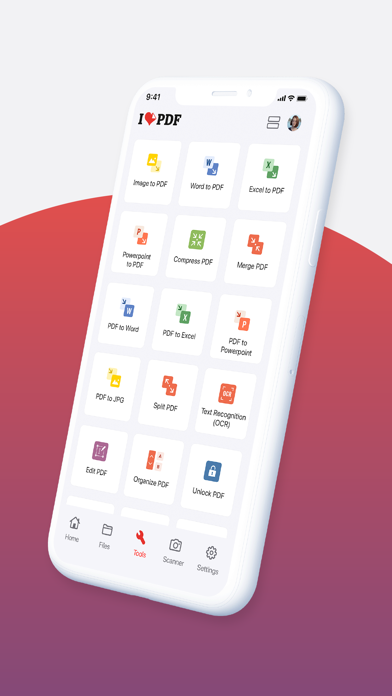
iPhone · iPad · WebExtract pictures as part of a PDF toolkit
Choose it when image extraction sits alongside merging, splitting and conversion. The iPhone follow-up recovered the three unique pictures as JPGs.
The tradeoff: JPG changes pixels and cannot retain transparency. Free tasks have limits; batch-sharing options are not yet established.
Free tier · Premium $5.49/month or $44.99/year
US App Store · USD · 2026-10-18 · Plan details & source
Explore iLovePDF →Editorial selection advice based on the linked product documentation, attributed feedback and any explicitly labeled test results—not a universal winner.
See the apps, not just the feature list
Developer-published product images. Captions identify the platform and source; these are not our test captures.
PDF Extractor
iLovePDF
Just the pictures
Compare dedicated and browser-based extraction.
Explore extraction →The whole page
Keep the visible layout, captions, and text together.
Explore page conversion →A quick reference
Capture and crop what you can see.
Explore screenshots →Compare your options
These options do not all produce the same result. A page image is an alternative outcome, not evidence of embedded-image extraction.
| Option | Intended result | Access & tradeoff | Evidence / open checks |
|---|---|---|---|
| PDF Extractor iPhone & iPad app | Four selected images saved in the iPhone run; transparency sample lost alpha. | No purchase prompt in this four-image save; broader unlock boundaries unknown. | Returned PNGs and recording reviewed; RGB/scan pixels match references. |
| iLovePDF iPhone & iPad app | Follow-up returned three JPGs covering the three unique raster assets. | Completed extraction; counter showed 1 of 2 daily free tasks remaining. Broader limits unknown. | Dimensions retained; JPG pixels differ and transparency is absent. Sharing friction tester-reported. |
| iLovePDF online Browser tool | Separate modes for embedded images and whole-page JPGs. | Web interface uses file uploads. Do not treat it as a verified local-only workflow. | Official tool interface reviewed. |
| Screenshot + crop Built-in approach | A capture of the visible region—not the underlying image. | No extra app purchase. Manual, screen-dependent output; unsuitable as proof of original resolution. | Apple documents screenshot capture. |
Sources: PDF Extractor listing · iLovePDF listing · iLovePDF online tool · Apple screenshot guide. These are provider sources, not independent test results.
Need individual pictures? Investigate extraction.
PDF Extractor is a focused option with a published image-selection interface. iLovePDF is another candidate if you also want broader PDF tools; its listing explicitly advertises image extraction. The limited sample findings above are not a comprehensive comparative benchmark.
The iLovePDF web tool also exposes an extraction mode. Its web page describes JPG output, so do not assume preservation of source format or transparency. Its app and website are separate workflows: web evidence does not verify app behavior.
Check iLovePDF’s app listing → · Inspect the browser alternative →
Need captions and layout? Convert the whole page.
If the useful result includes surrounding text, choose a page image rather than extracting individual assets. iLovePDF’s web interface offers a separate page-to-JPG mode. A rendered page does not prove that the original embedded picture has been recovered.
Need a quick visual reference? Try a screenshot.
Apple documents screenshot capture on iPhone. A screenshot-and-crop approach can be sufficient when you only need a visible reference and do not require source-image fidelity. It is a manual workaround, not a batch extractor.
What reviewers and users say
Our summaries of linked accounts—not our own experience or a vote-based ranking. Older versions and different platforms are labeled. Sources reviewed October 18, 2026.
App Store · mbbrrr
US listing · Feb 15, 2025 · version not stated
A reviewer found assembly useful but criticized OCR output and the small free allowance.
Read in context: An older, mixed app/platform account—not a current iPhone image-extraction result. The developer replied that free tasks renew daily.
App Store · @twohouseandoneboy
US listing · Jan 13, 2021 · historical
A student valued the service for schoolwork and wanted free access to continue.
Read in context: This describes an app/site experience during remote schooling, not today’s mobile feature limits.
No third-party evaluation of PDF Extractor’s exact image-extraction task is included in this selection. Our own sample is described separately from third-party accounts.
PDF Extractor · External coverage: We searched the exact product name and App Store ID on October 18, 2026. No suitable independent evaluation of this image-extraction workflow was located for this edition. Store facts and our small, separately labeled iPhone sample are available; this is a coverage gap, not evidence of broad approval or disapproval.
How to read disagreement
Different opinions can reflect different jobs, versions, devices or paid plans. We do not call a few comments “the consensus.” A consequential factual conflict that remains after checking those differences is a candidate for a focused hands-on test. A preference for one interface over another usually is not.
Our small-sample findings
Both apps recovered the three unique pictures. PDF Extractor saved PNGs to Photos; iLovePDF returned JPGs. Neither preserved the transparent sample. These findings apply to this iPhone run, not every PDF.
Read the test results, method and limitations
PDF Extractor 1.01 returned four PNGs; iLovePDF 4.1.0 successfully returned three JPGs in the follow-up. The fixture contains three unique raster assets placed four times, so three outputs are consistent with resource deduplication, not a missing unique picture. Both retained the sample dimensions; neither returned transparency. PDF Extractor matched the RGB/scan reference pixels, while iLovePDF JPG pixels differed. This limited sample is not an overall ranking; no comparative winner is established.
Known limitation: transparency was not preserved in this saved output. The input contains an RGBA image and a PDF soft mask; the returned 320 × 320 PNG is RGB, with every decoded alpha value equal to 255. We have not isolated whether the loss occurred during extraction, saving to Photos or subsequent transfer. Do not describe this path as lossless for transparent images.
PDF Extractor: returned PNGs
| Sample | Returned dimensions | Observed result |
|---|---|---|
| Repeated RGB picture | 640 × 480, twice | Both returned PNGs match the reference RGB pixels and dimensions. Their file hashes also match each other. |
| Transparency sample | 320 × 320 | Transparency not preserved: returned PNG is RGB, not RGBA. Color channels match, but the alpha channel is absent. |
| Synthetic scanned image | 800 × 1100 | Returned PNG matches the reference RGB pixels and dimensions. |
| Vector-only page | No raster picture expected | No additional vector-chart picture appears among the four returned exports. This is not a missing embedded raster image. |
Workflow and access
The PDF Extractor recording begins with the test PDF already open. It shows image selection, saving four images to Photos, the photo-add permission prompt and opening a saved result. No purchase prompt is visible in this run; the tester reports no paid entitlement. This demonstrates this four-image save only—not an unlimited free allowance or a verified import walkthrough.
iLovePDF: successful follow-up, three unique images
The first import attempt was blocked, but the follow-up recording shows importing the fixture through Documents, choosing PDF to JPG → Extract images, and completing extraction. Three JPGs were returned: 640 × 480, 320 × 320 and 800 × 1100. All three unique raster assets are represented; the repeated placement is not a fourth unique image. This is consistent with deduplication, not proof of a missing picture.
The JPGs retain those dimensions but do not match the reference pixels exactly. JPG output does not preserve alpha transparency. The recording shows one free task remaining out of two for that day after completion; this is an observed counter, not a guarantee of future pricing or allowances.
Sharing friction (tester-reported): saving to Photos was not straightforward, and the tester appeared to need individual AirDrop transfers to the Mac. The supplied recording ends at the results list; it does not demonstrate the sharing attempts or rule out a batch-share option. Batch saving and sharing remain unverified—not established as unsupported.
Device, method and remaining limits
iPhone Air · iOS 27.0.1 (tester-reported). App versions supplied by the tester: PDF Extractor 1.01; iLovePDF 4.1.0. The results apply to the supplied sample and recorded workflow.
We inspected the initial recordings, the successful iLovePDF follow-up, four returned PNGs and three returned JPGs. Comparisons use decoded pixels, not file size or thumbnail appearance. The table above describes PDF Extractor outputs; the iLovePDF findings are separately described below it. The two repeated RGB outputs are intentional placements of one source image, not two distinct source assets. Pixel equality here does not imply identical file encoding, metadata or color-profile behavior.
The recording visually identifies our four-page synthetic fixture, but no input PDF was returned for a byte-level identity check. The controlled reference has three raster assets placed four times, plus a vector-only page. These findings concern this sample and save path only.
Still untested: iPad, batch-sharing options, other save/share destinations, broader free limits, large and protected PDFs, offline operation and network traffic. No speed benchmark or privacy certification is claimed. Raw recordings are not published because they include personal gallery content.
Limitations & considerations
- Browser conversion uses a file-upload workflow; consider document sensitivity. Screenshots and rendered pages are not the original embedded image.
- PDF Extractor: The returned iPhone sample lost transparency. The stage responsible has not been isolated; do not rely on that save path for transparent graphics.
- PDF Extractor: The $2.99 Full Access listing does not explain the complete free allowance or renewal terms. iPad support is listed, but the supplied hands-on sample covers iPhone only.
- PDF Extractor: The store privacy declaration is developer-reported. Local-only processing has not been independently established.
- iLovePDF: The supplied extraction sample produced JPGs: dimensions were retained, but pixels changed and transparency was absent.
- iLovePDF: Free tasks have limits. Mobile Premium, desktop and browser workflows are different entitlements and processing environments.
- iLovePDF: The tester reported awkward saving/sharing; the recording does not establish that batch sharing is unavailable.
Documented features, attributed opinions and explicitly labeled hands-on observations are different kinds of evidence. We do not infer unmeasured performance or privacy guarantees.
Apply your constraints before choosing.
Sensitive document? Do not assume that installing an app means processing is local. Offline behavior and document uploads remain unverified for both apps. The online route presents an upload workflow.
Need a free batch export? Free download is not a promise of free extraction. Confirm the relevant paywall before processing a large document.
Need original quality? Compare the saved file with a known source. Sharp thumbnails and provider claims are not a quality benchmark.