How to Extract PDF Images with PDF Extractor on iPhone & iPad
A focused walkthrough of PDF Extractor’s published interface—not a comparison of every way to extract PDF images.
 PDF Extractor
 Step-by-step guide
Quick answer
On the recorded iPhone, PDF Extractor selected and saved four pictures to Photos. The RGB/scan samples matched reference pixels, but transparency was not preserved. This is a partial workflow observation, not a lossless guarantee or an iPad test.
Jump to the stepsNeed transparent graphics? The returned test sample lost transparency. See the scoped findings. This guide covers one app.
First, choose the result you need
Before you start, decide whether you want a picture inside the PDF or an image of the whole page. These are different results.
| What you need | Which approach to use |
|---|---|
| A photograph or illustration inside a PDF | Extract the embedded images, then select the ones you need. |
| Several pictures from the same document | Use an extraction tool with multiple-image selection. |
| The complete page, including its text and layout | Use a page-to-image workflow. |
| A quick visual reference | A screenshot may be sufficient, but check its readability. |
Before you begin
Have your PDF available on your iPhone or iPad. If it arrived in an email or messaging app, save an accessible copy before starting.
PDF Extractor is listed for iPhone and iPad, with a minimum requirement of iOS or iPadOS 15.0. It is free to download and includes an in-app purchase; check the current purchase screen before paying for the features you need.
For your first attempt, choose a small document containing a photograph you can easily recognize. This makes it easier to check whether you have selected the right output.
How to extract pictures with PDF Extractor
The recording confirms image selection, a four-image save to Photos and opening one saved result on the supplied iPhone. It begins with the PDF already open, so the import step below is still based on the published interface. Existing illustrations remain developer-published App Store screenshots, not frames from the new recording.
1Open your PDF
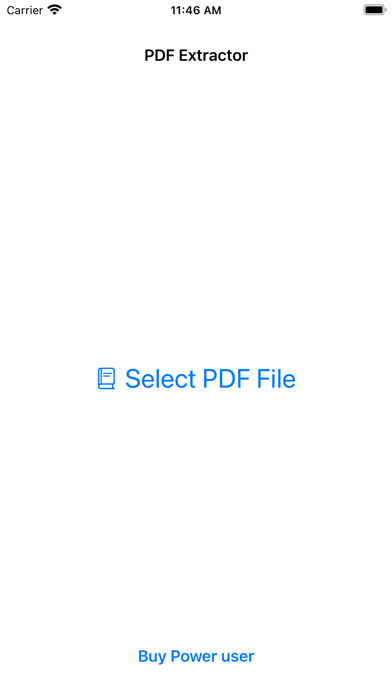
Launch PDF Extractor and tap Select PDF File. Choose the document you want to work with. The published interface shows the selected filename and a document preview.
Check the filename before continuing, especially if you have several versions of the same PDF.
2Choose image extraction
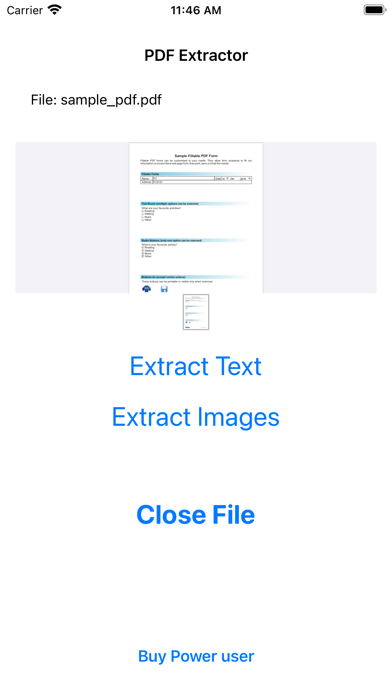
Tap Extract Images. The app also has a text extraction option. Choose the image option when you want pictures rather than the document’s written content.
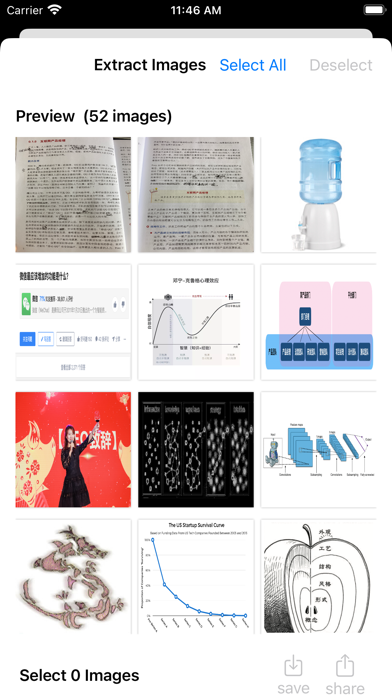
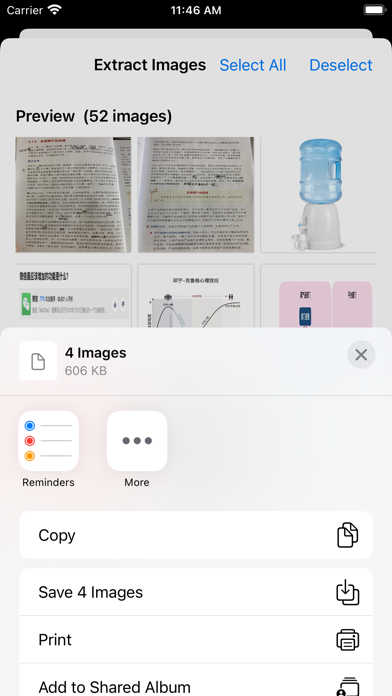
The extraction view displays a grid of pictures found in the document.
3Select the pictures you need
Choose individual images from the grid, or use Select All. Look through the previews before exporting: not every picture in the document will necessarily be one you want to reuse.
The selection count helps you check how many images you are about to export.
4Save or share your selection
Use the save or share control at the bottom of the extraction view. In the published iPhone screenshot, the share sheet includes an option to save the selected images.
Choose a destination appropriate to your next task. Available destinations can vary with your device and installed apps.
5Check an exported image before finishing
Open at least one exported file. A thumbnail looking sharp inside an app is not, by itself, proof that the saved file meets your requirements.
- Confirm it is the picture you intended to extract.
- Check that the image is complete and has the expected orientation.
- Inspect fine details at the size you need.
- Check transparent areas in the destination app.
- For important work, check the exported file’s pixel dimensions.
What does the iPad workflow look like?
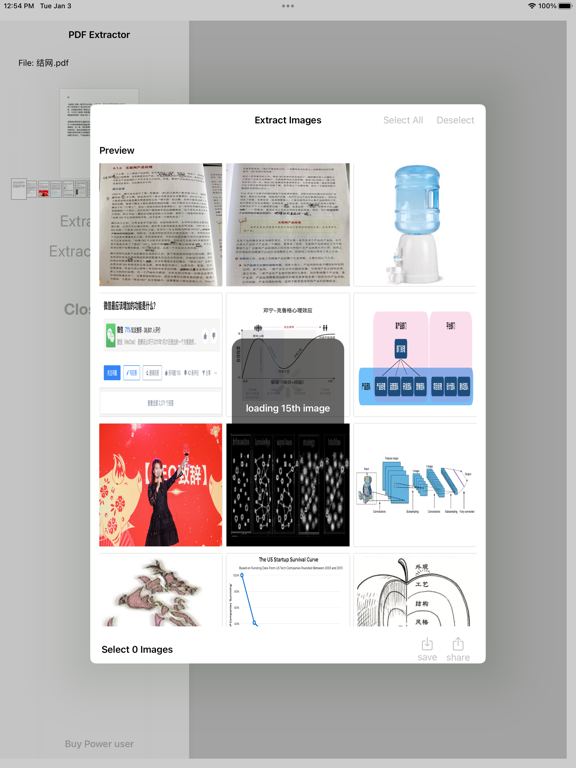
The developer’s iPad screenshot shows the same image-selection controls in a panel above the PDF workspace. The larger layout lets the document preview and extraction panel remain visible together.
Will extraction preserve the original quality?
For the returned iPhone sample, the 640 × 480 RGB outputs and 800 × 1100 synthetic scan matched the reference dimensions and decoded pixels. This does not establish lossless behavior for all PDFs.
The 320 × 320 transparency sample was returned as RGB without an alpha channel. Transparency was not preserved in this saved result. We have not isolated whether extraction, saving to Photos or subsequent transfer caused the loss.
Keep original documents and check the actual saved files. Do not rely on this save path when transparency must be retained.
Why is the result different from the PDF page?
A PDF page is a layout. It can place text, images, and other graphic elements together.
An extracted picture may look different from a screenshot of the surrounding page. If you need the complete visible composition—including labels, captions, or surrounding text—a page image may be the more useful output.
If you need just the underlying photograph, image extraction is the workflow to investigate.
What if the picture you need does not appear?
First, confirm that you opened the correct document and allowed the image previews to finish loading.
Then compare the extraction grid with the PDF page. If the required picture is missing or incomplete, do not assume that repeating the same export will fix it.
Keep the original PDF and note the affected page. Try another extraction method, use a page-image workflow if that meets your needs, or provide the developer with a non-sensitive sample for investigation.
Frequently asked questions
Can I extract several images at once?
The supplied iPhone recording shows selecting and saving four images together in PDF Extractor 1.01. This does not establish a larger or unlimited free allowance.
Does the app work on iPad?
Yes. The official listing supports iPad and requires iPadOS 15.0 or later; published screenshots show its image-selection interface. Our supplied hands-on sample covers iPhone, not iPad.
Is PDF Extractor completely free?
It is free to download. The checked US listing offers Get Full Access for $2.99. The listing does not define the full free allowance or renewal terms; see Limitations & considerations before relying on a large export.
Do my PDFs stay on my device?
The developer’s App Store privacy declaration states that data is not collected. This has not been independently verified by Apple. That declaration does not establish offline operation or prove that every processing workflow avoids uploads; we have not independently checked those behaviors.
Our small-sample findings
Both apps recovered the three unique pictures. PDF Extractor saved PNGs to Photos; iLovePDF returned JPGs. Neither preserved the transparent sample. These findings apply to this iPhone run, not every PDF.
Read the test results, method and limitations
PDF Extractor 1.01 returned four PNGs; iLovePDF 4.1.0 successfully returned three JPGs in the follow-up. The fixture contains three unique raster assets placed four times, so three outputs are consistent with resource deduplication, not a missing unique picture. Both retained the sample dimensions; neither returned transparency. PDF Extractor matched the RGB/scan reference pixels, while iLovePDF JPG pixels differed. This limited sample is not an overall ranking; no comparative winner is established.
Known limitation: transparency was not preserved in this saved output. The input contains an RGBA image and a PDF soft mask; the returned 320 × 320 PNG is RGB, with every decoded alpha value equal to 255. We have not isolated whether the loss occurred during extraction, saving to Photos or subsequent transfer. Do not describe this path as lossless for transparent images.
PDF Extractor: returned PNGs
| Sample | Returned dimensions | Observed result |
|---|---|---|
| Repeated RGB picture | 640 × 480, twice | Both returned PNGs match the reference RGB pixels and dimensions. Their file hashes also match each other. |
| Transparency sample | 320 × 320 | Transparency not preserved: returned PNG is RGB, not RGBA. Color channels match, but the alpha channel is absent. |
| Synthetic scanned image | 800 × 1100 | Returned PNG matches the reference RGB pixels and dimensions. |
| Vector-only page | No raster picture expected | No additional vector-chart picture appears among the four returned exports. This is not a missing embedded raster image. |
Workflow and access
The PDF Extractor recording begins with the test PDF already open. It shows image selection, saving four images to Photos, the photo-add permission prompt and opening a saved result. No purchase prompt is visible in this run; the tester reports no paid entitlement. This demonstrates this four-image save only—not an unlimited free allowance or a verified import walkthrough.
iLovePDF: successful follow-up, three unique images
The first import attempt was blocked, but the follow-up recording shows importing the fixture through Documents, choosing PDF to JPG → Extract images, and completing extraction. Three JPGs were returned: 640 × 480, 320 × 320 and 800 × 1100. All three unique raster assets are represented; the repeated placement is not a fourth unique image. This is consistent with deduplication, not proof of a missing picture.
The JPGs retain those dimensions but do not match the reference pixels exactly. JPG output does not preserve alpha transparency. The recording shows one free task remaining out of two for that day after completion; this is an observed counter, not a guarantee of future pricing or allowances.
Sharing friction (tester-reported): saving to Photos was not straightforward, and the tester appeared to need individual AirDrop transfers to the Mac. The supplied recording ends at the results list; it does not demonstrate the sharing attempts or rule out a batch-share option. Batch saving and sharing remain unverified—not established as unsupported.
Device, method and remaining limits
iPhone Air · iOS 27.0.1 (tester-reported). App versions supplied by the tester: PDF Extractor 1.01; iLovePDF 4.1.0. The results apply to the supplied sample and recorded workflow.
We inspected the initial recordings, the successful iLovePDF follow-up, four returned PNGs and three returned JPGs. Comparisons use decoded pixels, not file size or thumbnail appearance. The table above describes PDF Extractor outputs; the iLovePDF findings are separately described below it. The two repeated RGB outputs are intentional placements of one source image, not two distinct source assets. Pixel equality here does not imply identical file encoding, metadata or color-profile behavior.
The recording visually identifies our four-page synthetic fixture, but no input PDF was returned for a byte-level identity check. The controlled reference has three raster assets placed four times, plus a vector-only page. These findings concern this sample and save path only.
Still untested: iPad, batch-sharing options, other save/share destinations, broader free limits, large and protected PDFs, offline operation and network traffic. No speed benchmark or privacy certification is claimed. Raw recordings are not published because they include personal gallery content.
Limitations & considerations
- The returned iPhone sample lost transparency. The stage responsible has not been isolated; do not rely on that save path for transparent graphics.
- The $2.99 Full Access listing does not explain the complete free allowance or renewal terms. iPad support is listed, but the supplied hands-on sample covers iPhone only.
- The store privacy declaration is developer-reported. Local-only processing has not been independently established.
Documented features, attributed opinions and explicitly labeled hands-on observations are different kinds of evidence. We do not infer unmeasured performance or privacy guarantees.
Price & purchase options
- Download: Free
- Get Full Access: $2.99 (listed in-app purchase)
The public listing names the unlock but does not specify its renewal terms or every access limit. Check the purchase sheet.
US App Store · USD · checked 2026-10-18 · Verify the current offer ↗. Taxes, promotions and checkout eligibility may change the amount.
What reviewers and users say
Our summaries of linked accounts—not our own experience or a vote-based ranking. Older versions and different platforms are labeled. Sources reviewed October 18, 2026.
No third-party evaluation of PDF Extractor’s exact image-extraction task is included in this selection. Our own sample is described separately from third-party accounts.
PDF Extractor · External coverage: We searched the exact product name and App Store ID on October 18, 2026. No suitable independent evaluation of this image-extraction workflow was located for this edition. Store facts and our small, separately labeled iPhone sample are available; this is a coverage gap, not evidence of broad approval or disapproval.
How to read disagreement
Different opinions can reflect different jobs, versions, devices or paid plans. We do not call a few comments “the consensus.” A consequential factual conflict that remains after checking those differences is a candidate for a focused hands-on test. A preference for one interface over another usually is not.
Sources & editorial notes
- Source
- PDF Extractor’s US App Store listing and screenshots
Additional evidence: supplied iPhone recording, four returned PNGs and tester-reported device/version notes. See the scoped observations above.
- Reviewed
- October 18, 2026 · App version listed: 1.01
- Evidence level
- Published interface research plus partial iPhone save-path observations. Not an independent review or a completed comparative benchmark.
- Privacy
- The listing’s privacy declaration is developer-reported. Offline operation and document handling remain unverified.
Try a small selection first.
Start with a small selection: open the PDF, choose image extraction, select one recognizable picture, and check the saved result. Once that output meets your needs, move on to the remaining images.
View PDF Extractor on the App Store iPhone & iPad · Free download with in-app purchase · See the access limits above