How to merge PDFs with PDFgear on iPhone or iPad
A documentation-based workflow with page-order and export checks.
 PDFgear
 Step-by-step guide
The short answer
According to PDFgear’s iOS guide, open Tools → Merge PDFs, add the documents, arrange their order and merge. The saved PDF appears highlighted in Files; open it before sharing.
Is this the right fit?
PDFgear
iPhone · iPad · macOSStart with everyday PDF operations
A sensible shortlist for merging, reading and other routine document tasks. Use the platform-specific documentation: desktop and mobile tools are not interchangeable.
The tradeoff: Do not assume every desktop editing or AI feature exists on iPhone.
Free iPhone and iPad download
US App Store · USD · 2026-10-18 · Plan details & source
Explore PDFgear →Editorial selection advice based on the linked product documentation, attributed feedback and any explicitly labeled test results—not a universal winner.
See the apps, not just the feature list
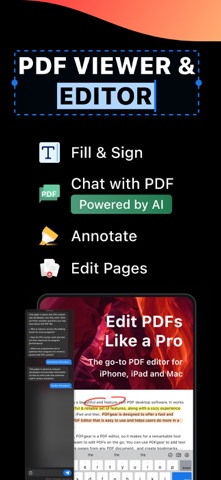
Developer-published product images. Captions identify the platform and source; these are not our test captures.
PDFgear
What reviewers and users say
Our summaries of linked accounts—not our own experience or a vote-based ranking. Older versions and different platforms are labeled. Sources reviewed October 18, 2026.
PDFgear · App Store reader examples
US feed · 50 recent entries retrieved 2026-10-18. Up to one positive and one critical example selected from that feed; not a representative sentiment survey.
anonymous ladybug sam · 2026-10-11 · 5/5 · v2.29
“I used to use preview to view my first aid…”Read the source feed ↗
Idkwhyuneedaname · 2026-10-15 · 1/5 · v2.29
“After the lastest update the program broke and no longer…”Read the source feed ↗
How to read disagreement
Different opinions can reflect different jobs, versions, devices or paid plans. We do not call a few comments “the consensus.” A consequential factual conflict that remains after checking those differences is a candidate for a focused hands-on test. A preference for one interface over another usually is not.
Side by side
| Checkpoint | Expected evidence |
|---|---|
| Input | Two labeled source PDFs |
| Merge | Current iOS controls and any prompts |
| Output | Saved six-page file opened independently |
1. Prepare identifiable copies
Save the documents to Files or PDFgear and give them distinct names. Use synthetic documents for practice. Write down the expected total page count and order. Do not use the only copy of a signed original as a test input.
2. Add the source PDFs
PDFgear’s official iPhone/iPad guide starts at Tools > Merge PDFs > Add PDF Files > Apple Files. Select the PDFs in the system picker. For files already stored in PDFgear, select them from its file list and confirm with OK.
If a cloud file is unavailable, download it before attempting an offline workflow. A file provider failing to supply the input is different from the merger requiring server processing.
3. Review before merging
Arrange the documents in the intended sequence. PDFgear’s documentation also describes a page view for excluding or reordering pages. Check thumbnails against your written plan instead of relying on the order in which files happened to be selected.
4. Save and inspect
Run the merge and locate the highlighted result in PDFgear’s Files area. Preserve the originals. Open the result in another reader and check the first and last page of every source, rotated scans and small text.
For example, four pages plus two pages should produce six pages unless you remove some. Check interactive fields separately; visual correctness does not prove that form behavior survived.
Before sharing
Rename the output clearly so you do not send an input by mistake. If the receiving service has a size limit, inspect file size before uploading. Compression is a separate operation with its own quality check.
If the controls differ, consult the help for your installed version rather than forcing a sequence that does not match the screen.
Limitations & considerations
- Desktop and mobile feature lists are not interchangeable. Use the instructions for your target platform.
- Free tools are documented by the provider; that does not establish identical access to every AI or cloud feature.
Documented features, attributed opinions and explicitly labeled hands-on observations are different kinds of evidence. We do not infer unmeasured performance or privacy guarantees.
Sources & scope
Reviewed October 18, 2026. These are provider-published sources; listings and feature access can change. This article uses the linked documentation; any hands-on observations are separately labeled.
- PDFgear iPhone and iPad merge instructions
Official iPhone/iPad merge instructions, updated September 11, 2026.