Preview Image Guide: Resize, Crop, Convert and Remove Backgrounds
Prepare everyday images on Mac before paying for a converter or a simple cutout tool.
The short answer
Use Preview for basic image geometry, format conversion, simple markups and supported background removal. Decide the required pixels, transparency and output format first. Move to a dedicated editor for layers, precise masks, restoration or complex design.
Write the delivery specification first
For a website upload, specify pixel dimensions, accepted format, maximum size and whether the background must be transparent. For print, ask about physical dimensions and image quality. A single instruction to make it smaller can mean cropping, resampling or compression.
Example: a square shop thumbnail and a transparent product cutout are different files. Make each from the original, not by repeatedly converting the previously exported version.
Resize dimensions without distorting the subject
Use Preview’s Adjust Size controls and keep proportional scaling enabled when preserving shape. Choose the requested width or height in pixels rather than stretching both independently. Apple distinguishes resampling from changing resolution; inspect the installed dialog before changing both.
A common mistake is typing a larger resolution number and expecting missing detail to appear. Judge the real pixel dimensions and the intended display, not just the number written next to resolution.
Crop for framing, rotate for orientation
Show Markup, use a rectangular selection and crop to the area you intend to keep. Rotate the image if the camera orientation is wrong. Keep a copy with the original margins if the crop may need to change later.
For a profile image, leave room around the face for the destination’s circular mask. For a product photo, check that a tight square crop has not removed a handle, cable or accessory that matters to the listing.
Convert using Export, not a renamed extension
Use File > Export and choose a supported format. Apple documents HEIC, JPEG, PNG, TIFF and other choices; Option-clicking the Format menu can reveal additional formats. For a group, open images in one window, select them in the sidebar and follow the conversion route.
Changing a filename from .heic to .jpg does not perform this conversion. Open the exported copy in the destination app to confirm that it is usable. For a transparent cutout, choose a format that preserves alpha, such as PNG, and check the actual background.
Remove a background or select a subject
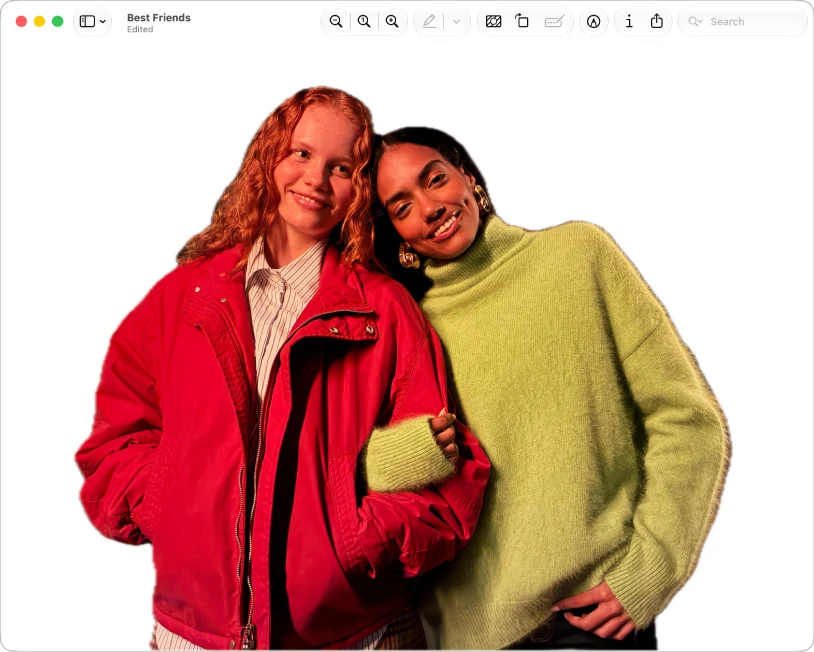
Current Apple documentation describes a Remove Background button, with PNG conversion when necessary. For a more specific region, its Smart Lasso route selects an outline you can copy. Use the documentation’s version selector if those controls are absent on your Mac.
Inspect hair, transparent objects, thin straps and reflected edges before accepting a cutout. A quick automatic result may be enough for a message and inadequate for a catalogue. Keep the untouched photo so you can move to a more precise mask later.
Do not confuse a PDF page export with an embedded picture
Exporting a PDF page to an image gives you a rendered page. Cropping a picture from that page is useful for a quick reference but does not establish that you recovered the original embedded image at its original resolution.
When you need individual original pictures, their file types or transparent graphics from a PDF, evaluate a dedicated extraction workflow. A page screenshot is a different deliverable.
Which apps might you not need?
A one-off HEIC conversion, resized screenshot or straightforward cutout may already be covered by Preview. Those are jobs often marketed by image converters and lightweight background-removal tools.
Canva becomes relevant for layouts, templates and repeated branded designs; a photo editor becomes relevant for layered adjustments and careful retouching. Neither should be recommended merely because a user needs one image exported to PNG.
Check pixels, edges and the exported background
Open the output on a contrasting background, inspect the edges and check pixel dimensions. If a web uploader rejects it, confirm actual format and file size instead of simply changing the extension again.
Save a master plus delivery copies named by purpose, such as product-cutout.png and product-thumb.jpg. This prevents a future request for a larger image from starting with the smallest existing thumbnail.
Limitations & considerations
- Menu names and availability depend on the installed system or app version; the linked documentation is the reference for current controls.
Use the linked official pages for current platform, access and purchase conditions.
Sources & scope
Reviewed October 25, 2026. Provider facts are attributed in each section. Examples, decision rules and quality checks are iApp4Me editorial guidance. Screenshots are credited provider illustrations unless a separate observation is explicitly identified.
- Apple: resize images
Official documentation; feature and version scope checked October 25, 2026.
- Apple: convert image formats
Official documentation; feature and version scope checked October 25, 2026.
- Apple: remove an image background
Official documentation; feature and version scope checked October 25, 2026.

No comments yet. Be the first to share your experience.