Preview PDF Page Guide: Merge, Split, Reorder, Rotate and Crop
Build a clean PDF packet on Mac without buying a merger—and recognize the jobs that need more than page manipulation.
The short answer
Use Preview’s thumbnail sidebar to assemble and rearrange PDF pages. Duplicate the originals first, then verify the saved packet. Page operations can replace a simple merger or splitter; they do not turn Preview into a full content editor.
Side by side
| Task | Preview route | Boundary |
|---|---|---|
| Merge | Thumbnail drag or Finder PDF into sidebar | Verify order and saved page count |
| Extract | Selected thumbnails to desktop | New PDF; verify exact pages |
| Insert | Edit > Insert | Insertion is after current page |
| Delete | Selected thumbnails > Delete | Annotations on deleted pages go too |
| Rotate | Select target pages, rotate | Different from rotating a print job |
| Crop | Rectangular selection > Crop | Not a redaction method |
Define the packet before dragging pages
For a typical application packet, write the expected sequence on paper: cover, form, identification copy and supporting material. Record the total number of pages. A visual plan makes it easier to catch a missing page or duplicate attachment.
Keep the source files in an Originals folder and work on copies. This matters because Preview can save document changes automatically. A filename such as packet-working.pdf is less ambiguous than several files called final.pdf.
Merge whole documents or selected pages
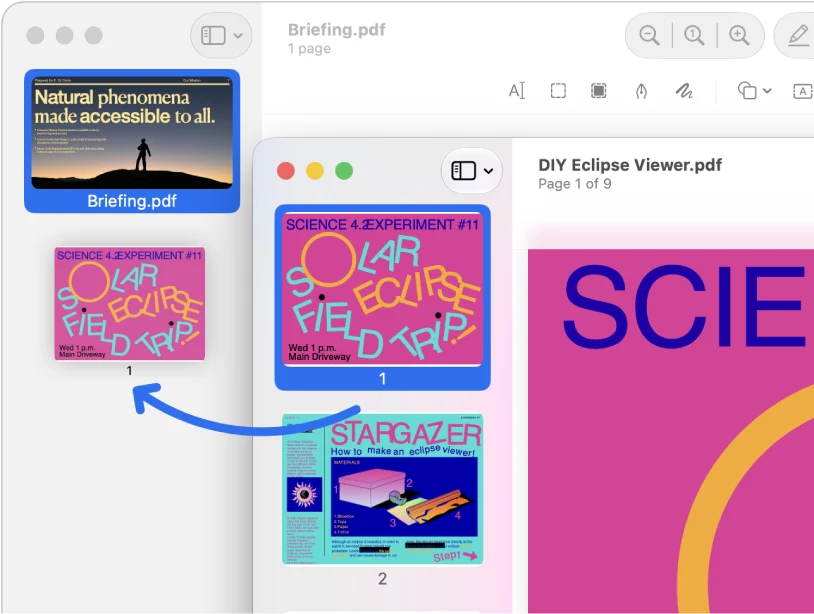
Open the source PDFs and show View > Thumbnails in each. Drag selected page thumbnails into the destination sidebar at the intended position. Command-click allows separated selections. For an entire extra PDF, Apple also documents dragging its Finder icon into the destination sidebar.
Release the pages between existing thumbnails, not into an unrelated window. Then inspect the join: last page of the preceding document, first page of the inserted document and the next page after it.
Insert, delete and rearrange
Choose the page before an insertion and use Edit > Insert > Page from File or Blank Page. Select unwanted page thumbnails and delete them; drag thumbnails to reorder. Deleting a page also discards annotations on that page.
For a packet that must contain every original page, reconcile your expected count after each operation. If a document contains its own printed page numbers, remember that moving a page does not rewrite those numbers.
Split a packet without retyping it
Apple documents creating a new PDF by dragging page thumbnails from the sidebar to the desktop. Select the intended pages, create the extract and open the resulting file to verify the contents. Name it for the range or purpose rather than calling it an original.
Example: send only an appendix when a reviewer requests it. Verify the first and last extracted page and the count; do not assume that a sidebar selection matches the printed numbering on the page.
Rotate for reading; crop for presentation
For several sideways pages, select their thumbnails before rotating. Crop a PDF page by making a rectangular selection with Markup and using Crop. The purpose is to change the visible page area.
A crop is not a privacy removal workflow. If an account number sits outside the visible crop, do not assume that the saved document no longer contains it. Use the security chapter before sharing sensitive material.
Fix common assembly mistakes
If a page appears twice, remove only the duplicate after confirming the expected count. If a page looks out of order, use distinctive content such as a title or figure rather than relying solely on the thumbnail’s small page label. If the document refuses an operation, inspect its permissions and ask the owner for an authorized editable copy.
Do not try to solve a password or permission problem by repeatedly printing and reimporting without checking what that transformation changes. The recipient may need searchable text, form behavior or an intact signature.
Which extra apps can this save you from?
For occasional local merging, extracting and rotating, Preview can cover the basic job that sends people looking for a standalone PDF merger or splitter. You do not need a paid editor merely to place an appendix after a cover page.
A dedicated tool becomes worth evaluating for repeated assembly rules, automated naming, hundreds of files, reliable bookmarks, structured indexing or a verified production workflow. PDFgear, PDF Expert and Acrobat are candidates to examine for the exact requirement, not automatic upgrades.
The final packet check
Open the saved output from its destination folder. Confirm page count, order, orientation, legible small print and any required form fields. Search a known phrase if the inputs were searchable. For a recipient with a strict upload cap, check size only after the packet is structurally correct.
Keep a short completion note with the source filenames and expected sequence. This gives you a way to rebuild the packet later instead of editing the delivered copy in place.
Limitations & considerations
- Menu names and availability depend on the installed system or app version; the linked documentation is the reference for current controls.
Use the linked official pages for current platform, access and purchase conditions.
Sources & scope
Reviewed October 25, 2026. Provider facts are attributed in each section. Examples, decision rules and quality checks are iApp4Me editorial guidance. Screenshots are credited provider illustrations unless a separate observation is explicitly identified.
- Apple: combine PDFs
Official documentation; feature and version scope checked October 25, 2026.
- Apple: add, delete and move PDF pages
Official documentation; feature and version scope checked October 25, 2026.
- Apple: crop or rotate a PDF
Official documentation; feature and version scope checked October 25, 2026.

No comments yet. Be the first to share your experience.