The Complete Preview Guide for Mac: Do More Before Installing Another App
A multi-chapter handbook for PDF paperwork, images, text, printing and less obvious tools—with the limits explained beside the features.
The short answer
Preview is more than a file viewer. Start here for everyday PDF and image work, then use the task chapters for the exact workflow. Install another app when the job needs capabilities such as original PDF-content editing, controlled OCR output, advanced design or managed document workflows.
Start with the result you need today
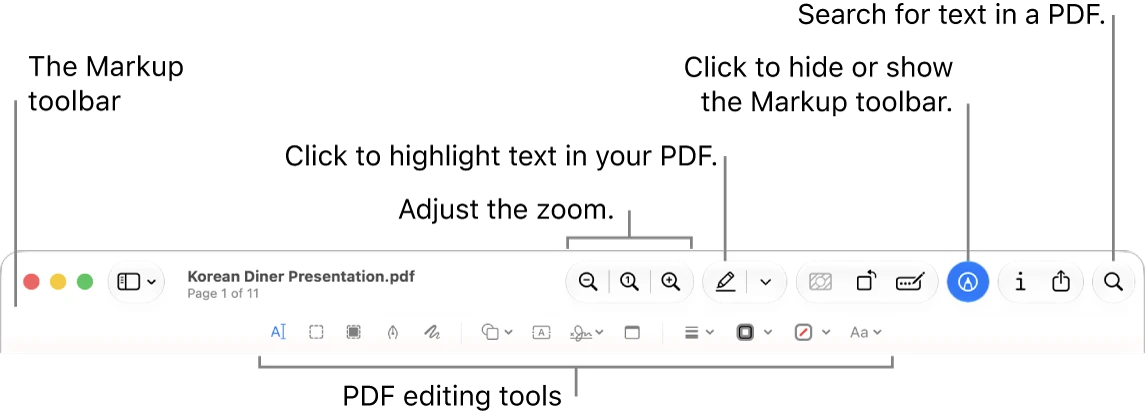
A built-in app can be easy to overlook because it opens the file without asking you to create an account. Preview’s useful role is the small task between receiving a document and sending a finished result: assemble pages, fill a form, mark a correction, resize an image or prepare an export.
This handbook is organized around those jobs. It does not claim that Preview replaces a measured percentage of paid software. Instead, each chapter names the overlap with common utilities and the point where a specialist becomes useful.
Before you edit: protect the source
Keep a named original, a working copy and a delivery copy for important files. Preview can save edits automatically. A reversible workflow is easier than trying to remember whether a crop, signature or page deletion already changed the source.
Choose File > Duplicate when you want a working copy. Give it a purpose-based name and inspect the final file from its actual destination folder. This habit is especially helpful when several attachments share nearly identical names.
Build a PDF packet
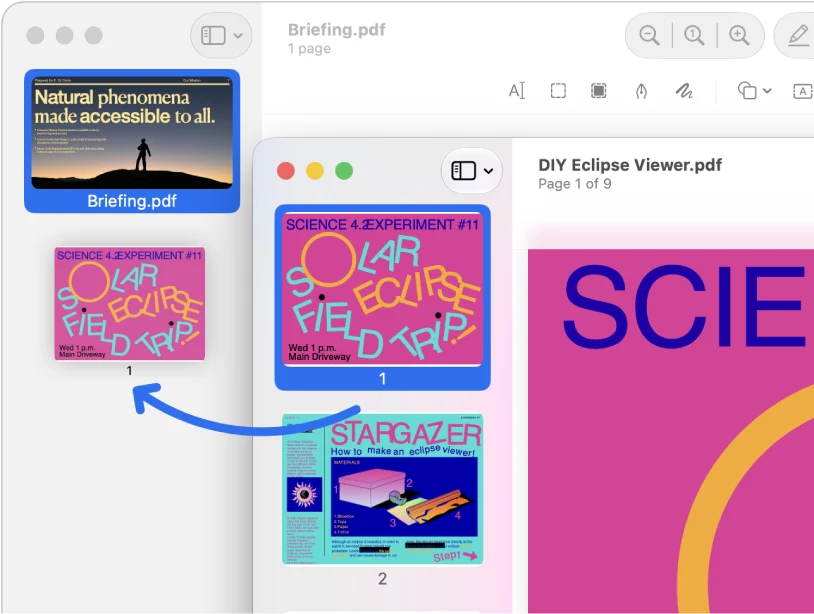
For an application, report or appendix packet, start with page order. Merging, splitting and rotation are structural tasks; they do not require rewriting the words on each page. Use the page chapter to assemble the packet before considering compression.
Example: cover + completed form + two supporting documents. Count the expected pages, inspect the joins and check the last page before submitting.
Return paperwork without printing
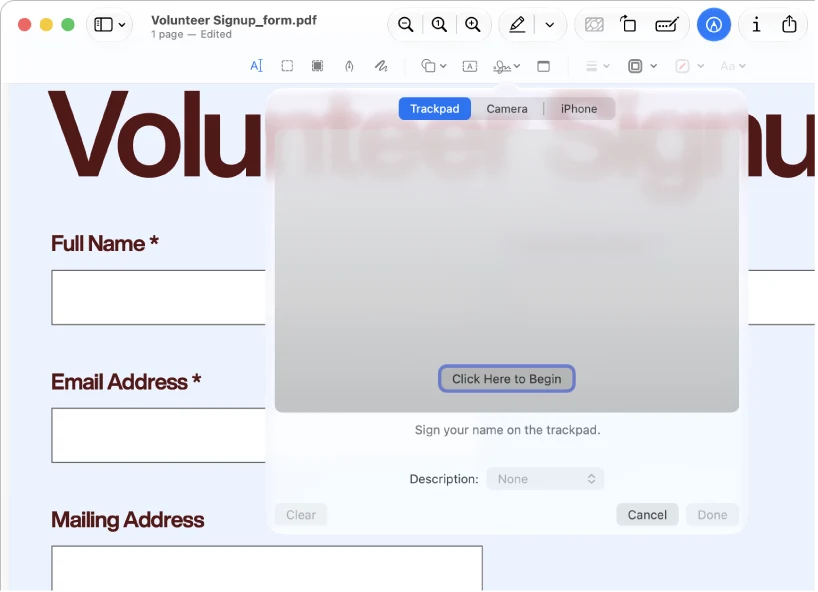
A form may need typed answers, a visible signature and a note for the recipient. Preview can often handle that small job. A request to rewrite a paragraph or produce a managed signing record is a different requirement.
The forms chapter explains the distinction so that you do not buy a full suite for a text box—or assume a text box can replace full editing.
Prepare images for their destination
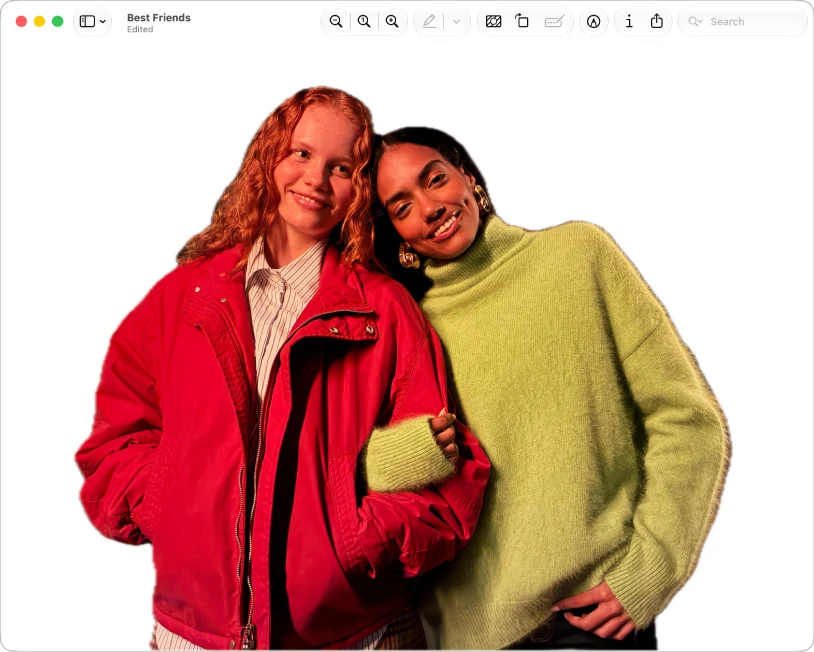
Choose dimensions, background and output format before editing. A transparent product cutout, a compressed email photo and a cropped profile picture should not all be made by repeatedly exporting the same small JPEG.
The image chapter covers supported conversion, geometry and background removal, plus why exporting a PDF page is not the same as recovering an original embedded picture.
Make text useful without confusing the outputs
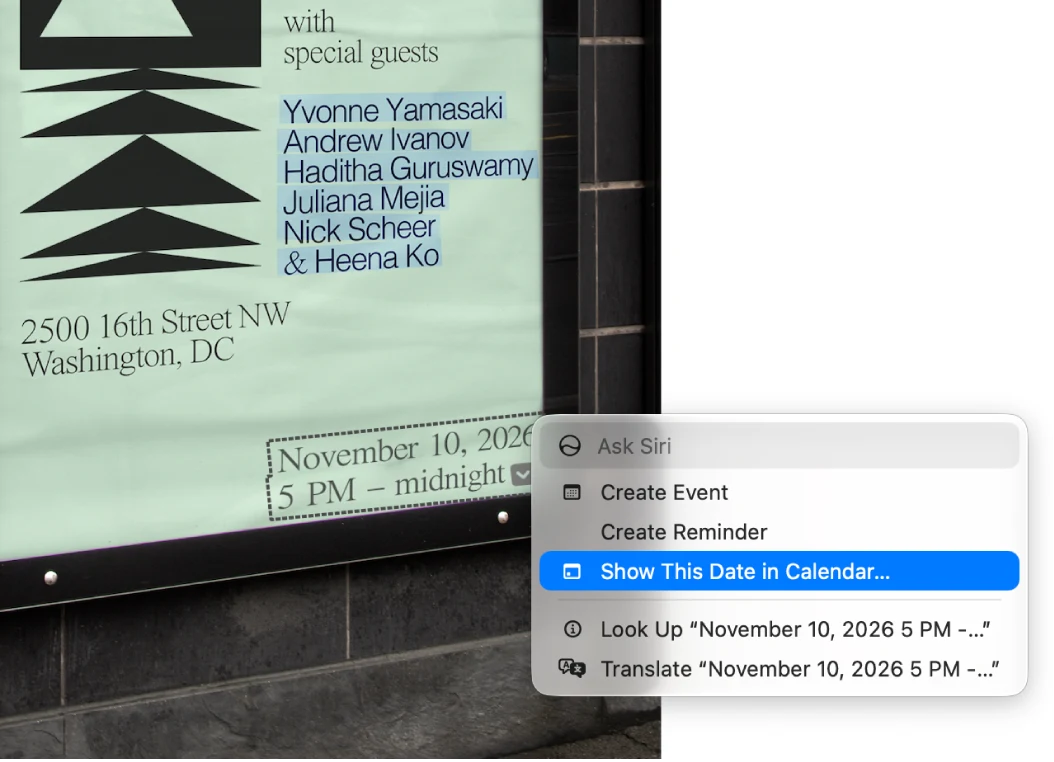
Searching a text PDF, copying words from a photo and saving a searchable scan are separate outcomes. Start by identifying which one you need. The text chapter gives a diagnosis route and a clear boundary for dedicated OCR and conversion.
For a quotation, verify the actual characters and page. For a scanned archive, verify the exported file across representative pages rather than relying on a selection highlight.
Compress only after the document is correct
A smaller broken packet is not an improvement. After assembly and form filling, compare a fresh compressed candidate with the original. Keep the candidate only when both size and readability meet the destination’s requirements.
Our existing single-file record includes a Preview export that grew rather than shrank. Use the compression and troubleshooting chapters for the full observation and the recovery process.
Share deliberately: a mask is not a removal
Do not treat a cropped edge or black annotation as proof that underlying information is gone. Use the actual redaction and password controls when appropriate, then check the saved candidate. Complex sanitation and mandated signing workflows need their own evaluation.
The security chapter separates local locking, opening passwords, permissions and content removal so that the protection matches the goal.
Print, capture and inspect
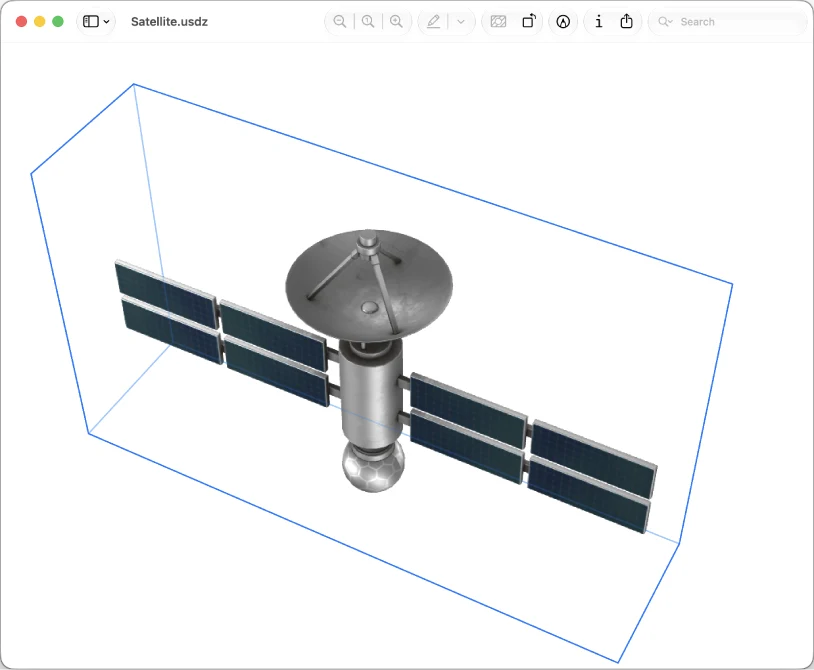
A selected-page print, two-up handout or imported scan can be simpler than downloading a single-purpose utility. The printing chapter focuses on the output; the advanced chapter covers inspection, available versions, small batch conversions and current supported 3D viewing.
For older systems, use Apple’s version selector. This handbook follows the current Mac documentation, including macOS 27-only differences where relevant; it does not apply Mac menus to iPhone or iPad.
Decide when another app is worth it
Buy for the missing requirement: original-content editing, an archive with verified OCR, reference management, precise design or a repeatable production process. Avoid both extremes—paying for a task your Mac already handles, or forcing a complex task through a fragile workaround.
The capability chapter maps common jobs to this boundary and links to relevant App profiles. Those are research starting points, not claims that all editions of each app include every feature.
Limitations & considerations
- Menu names and availability depend on the installed system or app version; the linked documentation is the reference for current controls.
Use the linked official pages for current platform, access and purchase conditions.
Sources & scope
Reviewed October 25, 2026. Provider facts are attributed in each section. Examples, decision rules and quality checks are iApp4Me editorial guidance. Screenshots are credited provider illustrations unless a separate observation is explicitly identified.
- Apple: Preview User Guide
Official documentation; feature and version scope checked October 25, 2026.
- Apple: combine PDFs
Official documentation; feature and version scope checked October 25, 2026.
- Apple: revert document changes
Official documentation; feature and version scope checked October 25, 2026.

No comments yet. Be the first to share your experience.