What Preview Can Replace—and When You Need Another Mac App
A task-by-task buying guide for PDF editors, converters, scanners, cutout tools and research apps.
The short answer
Try Preview first for reading, page assembly, basic markup, visible signatures, supported image conversion and simple cutouts. Install another tool when the requirement is original-content editing, dependable OCR output, specialized signing, library management, advanced design or repeatable production work.
Side by side
| Task | Try Preview first | Research another tool when |
|---|---|---|
| Merge, split, rotate | Occasional local PDF assembly | Automation, large batches, structured indexing |
| Form and visible signature | Simple accepted paperwork | Managed signing or complex form authoring |
| Correct existing text | No: annotation is not original editing | Source document or dedicated PDF editor |
| Reduce size | Compare a readable exported candidate | Need more controls or strict target |
| Image conversion and resizing | Supported formats and basic geometry | Complex processing or repeated production rules |
| Remove background | Simple supported cutout | Precise masks, retouching and design |
| Read one paper | Loose document markup | Reference library and citation-linked notes |
| Recognize a short image | Supported Live Text | Persistent batch OCR or structured conversion |
| Open a 3D asset | Supported file and current system | Geometry, rigging and animation authoring |
Replace a job, not an entire product
Preview can cover a job that is also present in a paid suite without replacing that suite in every respect. Merging two documents does not prove parity with a production PDF editor. Removing one simple background does not make it a layered photo editor.
Our rule is to name the required output first, try the built-in route where it fits, then pay for the missing capability. We do not attach an unsupported percentage to how many users or tasks Preview can replace.
Basic PDF editing versus editing the original content
Preview’s documented markup lets you add feedback and visible elements, while Apple explicitly distinguishes that from editing the existing PDF text. If your goal is correcting a sentence or changing an embedded image, obtain the source file or evaluate a dedicated PDF editor.
PDFgear, PDF Expert and Acrobat belong on a feature shortlist for PDF work, but check the exact Mac edition, feature and purchase tier. Free Reader is not shorthand for all paid Acrobat editing features.
Simple signature versus a signing workflow
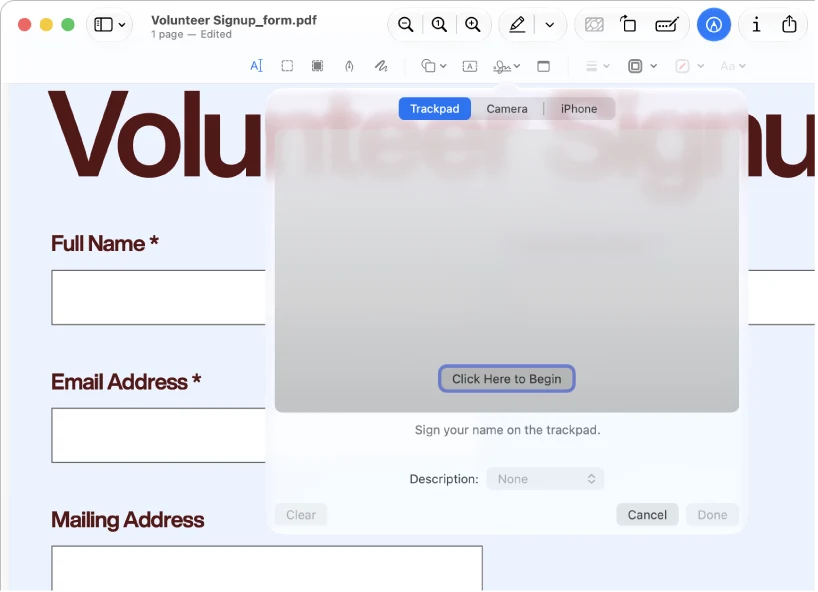
Preview can place a visible signature on a form. A recipient can instead require a signing service, certificate or managed workflow. Ask what deliverable they accept before buying or sending.
Use the built-in route for ordinary paperwork when accepted. Use the required dedicated route when verification, multiple signers or controlled process is the actual need. Do not make a universal legal claim from how a signature looks.
Loose PDFs versus a research library
A single paper can be read and marked in Preview. A literature workflow also needs references, identifiers, collections, citation-linked notes and synchronization across a library. Zotero addresses that broader system.
Keep Preview for a quick returned markup when that is the job. Use a reference manager when the hard part is connecting many papers to the writing they support.
Image utility versus design project
A resized JPEG, a one-off PNG conversion or a straightforward cutout can fit Preview. A social campaign with text styles, reusable templates and several branded sizes is a different job, for which a design app such as Canva is worth evaluating.
For fine hair masks, retouching, layered adjustments or repeated commercial image preparation, inspect a dedicated image editor. Do not discard a good built-in solution merely because it has fewer templates.
Readable scan versus useful archive
Opening a scanned PDF is not equivalent to producing a verified searchable archive. Live Text may solve a small extraction; a repeatable recognition pipeline has additional requirements for language, output, naming and quality checks.
If you need searchable PDF output, spreadsheet-ready data or Word reconstruction, evaluate that output specifically. Ask whether the workflow runs locally or uploads content, and verify the file you receive back.
Use a purchase checklist with a finish line
Write one sentence: “I need to change existing text,” “I need to process 200 scans,” or “I need a reference library.” Then check the candidate’s platform, required tier, export limits and current documentation.
Evaluate a representative file before committing to a subscription or migration. A long features page cannot show whether your tables, forms, annotations or images survive the exact transformation you need.
- Required result: name the file or action.
- Current obstacle: identify the specific Preview limitation.
- Candidate: verify the exact feature and edition.
- Cost: distinguish base price, recurring plan and optional add-on.
- Acceptance: define what must remain readable or editable.
When staying with Preview is the right decision
If the built-in workflow produces the accepted result, is easy to repeat and does not create a hidden preservation problem, there is no automatic reason to install another app. Spend the saved effort on checking the final file.
When the task grows beyond that boundary, moving to a specialist is a sensible workflow change, not a failure of the built-in app. Keep the original and choose the tool for the next requirement.
Limitations & considerations
- Menu names and availability depend on the installed system or app version; the linked documentation is the reference for current controls.
Use the linked official pages for current platform, access and purchase conditions.
Sources & scope
Reviewed October 25, 2026. Provider facts are attributed in each section. Examples, decision rules and quality checks are iApp4Me editorial guidance. Screenshots are credited provider illustrations unless a separate observation is explicitly identified.
- Apple: annotate a PDF
Official documentation; feature and version scope checked October 25, 2026.
- Apple: fill and sign PDF forms
Official documentation; feature and version scope checked October 25, 2026.

No comments yet. Be the first to share your experience.