Preview PDF Security: Redact Text, Set Passwords and Share the Right Copy
Separate content removal, visible masking, access protection and ordinary file locking before sending a PDF.
The short answer
Use the actual Redaction Selection tool for supported text removal, not a black rectangle or crop. Use PDF password settings when the recipient needs restricted opening. Verify the saved copy; Preview is not a complete document-sanitation or managed-signing system.
Choose the protection you actually need
There are several different goals: preventing accidental edits to your local file, requiring a password to open a shared PDF, removing a sensitive passage and proving an approved signing process. A single padlock icon cannot stand in for all of them.
Decide which version the recipient should receive before changing the document. Keep the original private and place a sanitized candidate in a separate delivery folder.
A rectangle, a crop and a redaction are different operations
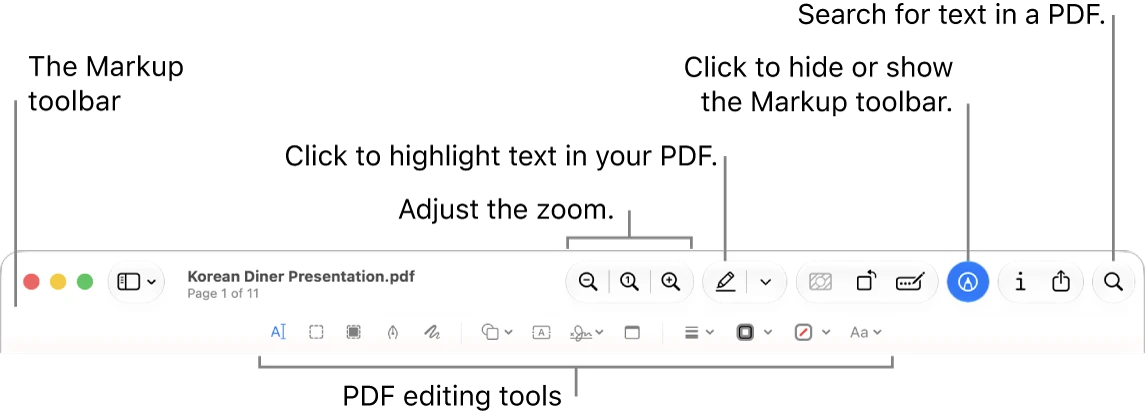
A dark shape is an annotation placed over content; a crop changes the visible page area. Neither should be treated as proof that the underlying material has gone. Preview’s actual Redaction Selection is the tool Apple identifies for removing selected text from view.
Use the tool on a working copy and follow its warning about permanence: Apple describes redaction becoming permanent after the document is closed. Open the saved delivery copy again before considering the operation complete.
Check what you intended to remove
After reopening, search for the removed phrase, attempt a copy-and-paste around the edited area and inspect the affected pages. Also review notes, other pages and any duplicate occurrence of the same information. These checks help catch mistakes but are not a formal sanitation certification.
For scans, image-only content, hidden attachments or a sensitive production workflow, do not assume a text-selection redaction covers every representation. Use a tool and review process suited to the actual document contents.
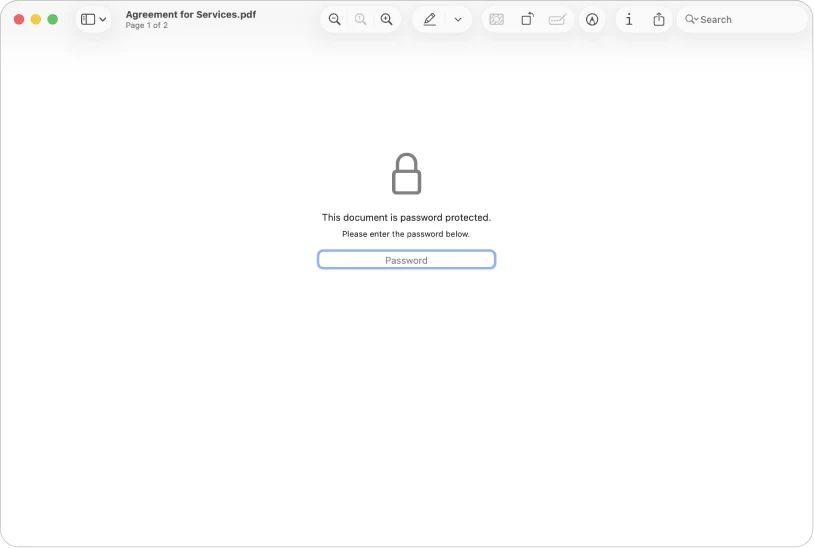
Require a password to open a PDF
Apple documents File > Export > Permissions, where you can require an opening password and set owner-controlled permissions for other actions. Save with a new filename and reopen to confirm the intended prompt. Merely changing local file locking is not the same thing.
Send the correct candidate, keep the opening password available to the intended recipient and avoid putting it in the same public location as the file. Confirm that their software can open the protected output.
Do not promise that print restrictions prevent every copy
Owner permissions express restrictions on actions such as printing and copying in compatible software. They should not be described as a guarantee against every possible disclosure by someone who can view the contents.
If the recipient must work collaboratively under controlled access, use a workflow designed for that purpose instead of treating an emailed PDF as a revocable live document. Once a separate file is delivered, your local edits do not update that copy.
Inspect information beyond the visible passage
Preview’s Inspector exposes information about PDFs and images. Review what it shows, but do not mistake an Inspector glance for removal of every metadata field, attachment or prior representation that could exist in a complex PDF.
Before sending, also inspect the filename, the destination folder and the actual attachment selected by your email client. A correctly edited candidate does not help if you attach the unedited original.
When a dedicated app is justified
For occasional password protection and a simple text-redaction job you can verify, Preview can cover the basic task. For scanned batches, broad sanitization, searchable redaction across documents or a recipient-mandated signature process, evaluate specialist software and its documented workflow.
A professional PDF product is not automatically safer because it costs money. Ask which content layers it handles, what it removes and how the final document can be checked. This guide explains software distinctions; it does not certify a particular document for a legal or regulated use.
Delivery checklist
Close the candidate, reopen it, confirm the password behavior and recheck the edited pages. Review the filename and the receiving address before sharing. Keep the original apart from the delivered version.
Use a short note such as “account-number passage removed; opening password required; checked in recipient’s viewer” so the result can be understood later without re-running the whole workflow.
Limitations & considerations
- Menu names and availability depend on the installed system or app version; the linked documentation is the reference for current controls.
Use the linked official pages for current platform, access and purchase conditions.
Sources & scope
Reviewed October 25, 2026. Provider facts are attributed in each section. Examples, decision rules and quality checks are iApp4Me editorial guidance. Screenshots are credited provider illustrations unless a separate observation is explicitly identified.
- Apple: annotate a PDF
Official documentation; feature and version scope checked October 25, 2026.
- Apple: crop or rotate a PDF
Official documentation; feature and version scope checked October 25, 2026.
- Apple: PDF passwords and permissions
Official documentation; feature and version scope checked October 25, 2026.
- Apple: inspect document information
Official documentation; feature and version scope checked October 25, 2026.

No comments yet. Be the first to share your experience.