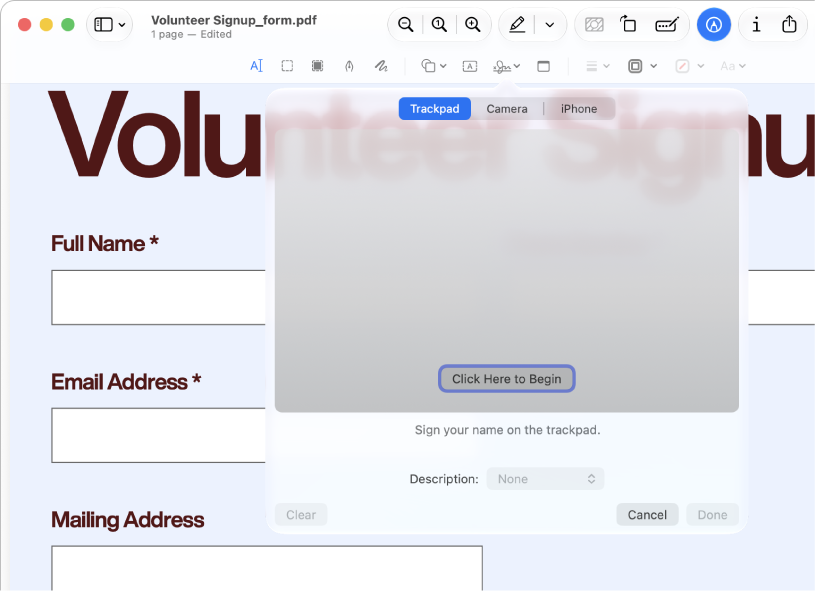
How to Reduce PDF File Size in Preview on Mac
Export a separate PDF with Preview’s Reduce File Size filter, then compare the saved file with the original. Keep the smaller copy only if the text, diagrams and required fields remain usable.
Scan, extract, edit, sign, and organize your documents.
Showing 13–21 of 21 guides
Export a separate PDF with Preview’s Reduce File Size filter, then compare the saved file with the original. Keep the smaller copy only if the text, diagrams and required fields remain usable.
PDF Extractor
Step-by-step guideChoose Markdown for text-first notes, HTML for content you need to inspect in a browser, and RTF for formatted text exchange. PDF Extractor 1.02 lists all three. Pick the format for the next editing tool, not as a shortcut to an identical copy of a PDF page.
PDF Extractor
Step-by-step guideUse PDF Extractor 1.02 or later to convert a PDF into a .docx document, then open that file in your preferred Word-compatible editor. Treat conversion as the start of editing: keep the PDF and check the saved result before relying on it.
PDF Extractor
Step-by-step guidePDF Extractor 1.02 adds document conversion and extends its stated workflow to Mac as well as iPhone and iPad. Its useful new role is recovering content you want to edit—not replacing a complete PDF editor.
Scanner Pro
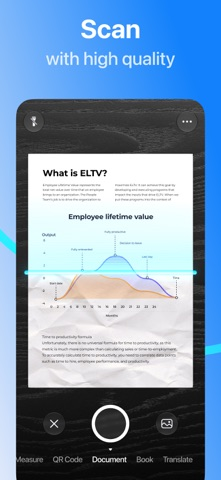
Step-by-step guideCapture the document, review the image, enable the appropriate OCR language and export a PDF. Reopen it elsewhere and search a known phrase. Our current workflow is sourced from Readdle documentation, not a completed device test.
PDFgear
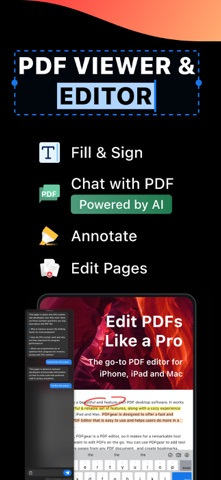
Step-by-step guideAccording to PDFgear’s iOS guide, open Tools → Merge PDFs, add the documents, arrange their order and merge. The saved PDF appears highlighted in Files; open it before sharing.
PDF Extractor
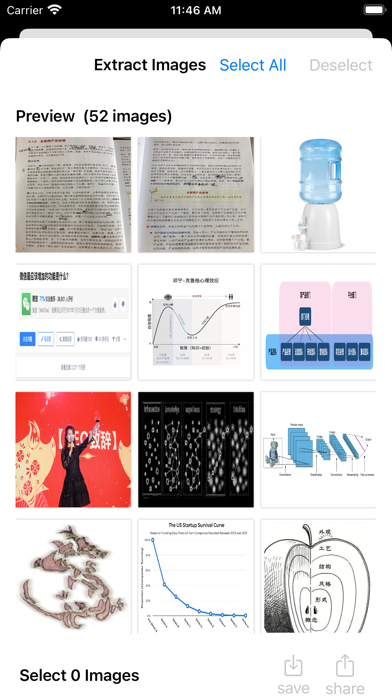
Step-by-step guideOpen a PDF, choose image extraction, inspect the recovered pictures and export the selection. Version 1.02 lists an allowance of 20 supported images before full access. This guide remains an iPhone/iPad method; the app also lists Mac support, but those controls have not been reproduced here.
PDFgear
Step-by-step guideOn supported current iOS releases, Preview can insert a PDF from a file into an open PDF through its page-thumbnail controls. For a dedicated multi-file workflow, PDFgear documents an iPhone merger. Choose the route available on your device and verify order and output; no merge-quality winner is declared here.
Step-by-step guideIf you need an original embedded picture, use a tool that explicitly extracts PDF images and inspect its saved output. If you need the appearance of a page, Preview can export a page to an image format. Those are different results; neither a screenshot nor a page export establishes original-image fidelity.