How to reduce PDF file size with Preview on Mac
Create a smaller copy and check whether its quality is still acceptable.
 Preview
 Step-by-step guide
The short answer
Preview on Mac provides PDF size-reduction options. Export a copy, compare its bytes and inspect fine detail. This Guide is Mac-specific and does not promise identical controls on iPhone or iPad.
Is this the right fit?
Preview
macOS · iPhone · iPadTry the included Mac tool first
For ordinary viewing, annotation and page operations, start with the tool already on your Mac before installing a larger PDF suite.
The tradeoff: This profile covers Mac Preview, not feature parity with the iPhone edition.
Included with macOS
Apple documentation · included software · 2026-10-18 · Plan details & source
Explore Preview →Editorial selection advice based on the linked product documentation, attributed feedback and any explicitly labeled test results—not a universal winner.
See the apps, not just the feature list
Developer-published product images. Captions identify the platform and source; these are not our test captures.
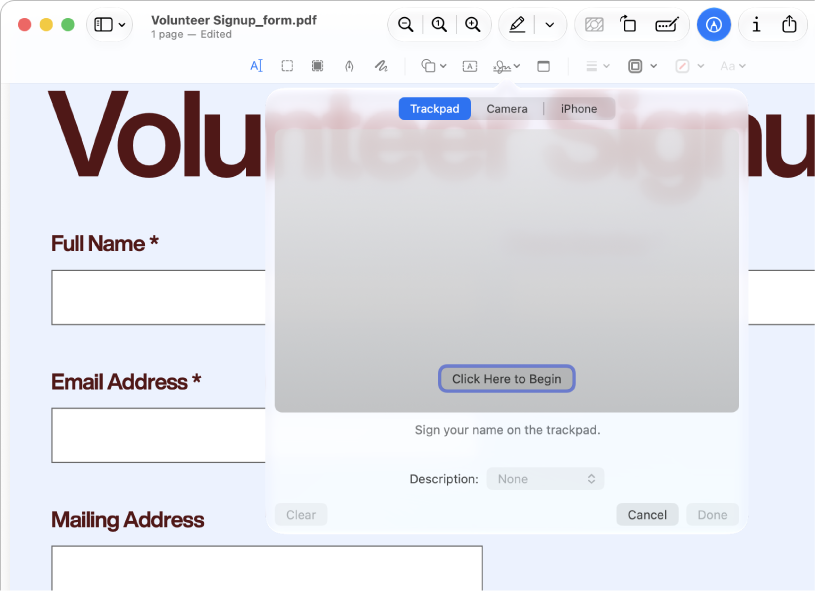
Preview
Apple documentation image; interface depends on macOS version.
What reviewers and users say
Our summaries of linked accounts—not our own experience or a vote-based ranking. Older versions and different platforms are labeled. Sources reviewed October 18, 2026.
Macworld · Chris Barylick
May 24, 2022 · Preview 11 / macOS Monterey 12.4
Barylick finds the included Preview useful for everyday forms, signatures and basic PDF changes before considering an Acrobat upgrade.
Read in context: A historical Mac comparison. Its old prices and format limitations are not current facts or evidence about iPhone Preview.
How to read disagreement
Different opinions can reflect different jobs, versions, devices or paid plans. We do not call a few comments “the consensus.” A consequential factual conflict that remains after checking those differences is a candidate for a focused hands-on test. A preference for one interface over another usually is not.
Side by side
| Check | How to check | Why it matters |
|---|---|---|
| File size | Compare the saved file with the original | Meet the recipient’s upload limit |
| Fine text and images | Inspect at the size you will read or print | Compression can trade quality for size |
| Page count and text search | Reopen the saved copy and search a known phrase | Confirm the document is still useful |
1. Keep a baseline
Duplicate your input and record its size before making changes. Note the upload limit you need to meet and whether the recipient will print the document. Use a scan with small text and an image-rich document as separate examples.
Do not repeatedly compress the same working copy while searching for a setting. Return to the baseline so you can compare each output fairly.
2. Open the copy in Preview
Open the PDF in Preview and choose File > Export. Apple’s guide describes choosing Reduce File Size in the Quartz Filter menu, then saving under a different filename so the original remains available. Available additional image-optimization options depend on macOS.
Choose a different output name. Keep the original format as PDF when the receiving portal requires a PDF: archiving the file into ZIP is not an equivalent solution.
3. Evaluate the result
Record output bytes and calculate reduction from the baseline, not from an already compressed intermediate. Open both files side by side. Inspect small printed type, line art, gradients and any faint handwritten content.
Search for a phrase if the original was searchable. Check that all pages are present and correctly oriented. A smaller file that loses essential detail is a failed result even if the upload succeeds.
4. Choose a usable stopping point
If the file fits and remains legible, retain that copy for sending. If reduction is too small or quality is unacceptable, investigate another compressor or ask the recipient for another delivery route. No fixed reduction percentage is guaranteed.
These instructions follow Apple’s documentation. The useful result is a smaller copy that remains readable, not a particular reduction percentage.
Limitations & considerations
- Mac and mobile Preview have different controls and system requirements; the linked Mac instructions do not establish mobile feature parity.
- Size-reduction filters can degrade images or fine text. Keep the original PDF.
Documented features, attributed opinions and explicitly labeled hands-on observations are different kinds of evidence. We do not infer unmeasured performance or privacy guarantees.
Sources & scope
Reviewed October 18, 2026. These are provider-published sources; listings and feature access can change. This article uses the linked documentation; any hands-on observations are separately labeled.
- Reduce a PDF in Preview on Mac
Apple instructions for PDF size reduction; not evidence of output quality.