Preview Made My PDF Bigger: Why It Happens and What to Try
Recover from an unhelpful Reduce File Size export without sacrificing the original or guessing what happened inside the PDF.
The short answer
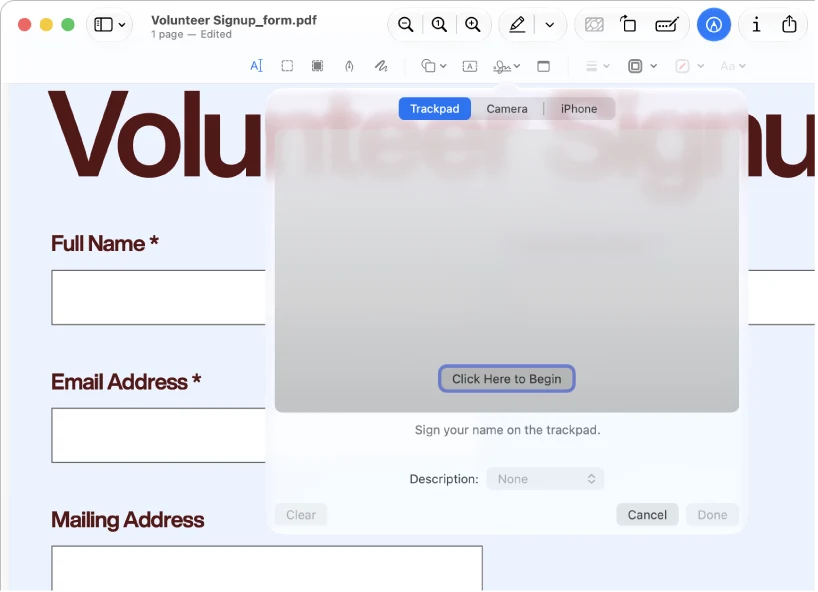
Keep the original, compare actual byte sizes and stop processing the larger copy. Preview’s filter can produce an unhelpful result; use a new candidate from the original, a better source scan, an accepted split or a more configurable compressor.
First, confirm that you are comparing the right files
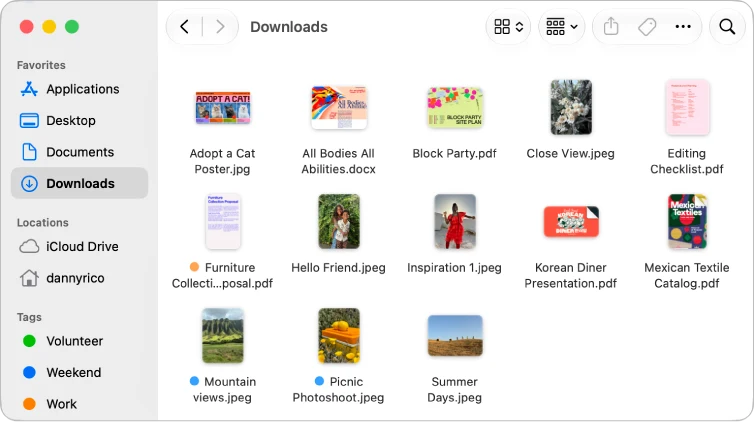
Put the original and candidate side by side in Finder and inspect their names, page counts and sizes. A duplicate filename in Downloads can make you compare the wrong copy. For a support request, note the exact bytes if available rather than rounding both files to the same megabyte figure.
Do not delete the source. A larger result is a failed candidate, not a reason to replace your only readable copy.
A documented preset is not a target-size guarantee
Apple documents the Reduce File Size export and warns that output size and quality depend on the chosen options. The label does not promise a fixed percentage reduction, a particular upload size or lossless treatment of every document.
What our one-file observation establishes
Our existing October 24 record used Preview 11.0 on macOS 27.0.1 and a four-page synthetic fixture. The source was 52,638 bytes and the export was 187,080 bytes. That establishes that this particular export grew; it does not identify which internal PDF objects caused the change.
It also does not prove that Preview is always poor at scans or that a named alternative will perform better. Compare a representative document rather than turning one unusual small file into a universal benchmark.
Choose the next action by the failure
If the original already meets the recipient’s limit, send it. If a scan is both huge and faint, ask for a clearer source or re-scan with settings appropriate to the destination. If only a few pages are needed, create an extract when the recipient permits it.
If the upload requires the complete file, keep all pages and try a tool with explicit image-resolution and quality controls. You are evaluating the readable result, not rewarding an application for displaying a green success message.
- Bigger but readable: retain the original and try a different approach.
- Smaller but illegible: reject the candidate.
- Same size: inspect whether a different source or target is needed.
- Wrong page count: fix the document before judging compression.
Stop after a controlled comparison
Create candidates from the untouched source, use distinct names and record the setting that produced each. Avoid repeated exports of the last degraded copy. For each candidate, check small text, representative images, search and filled fields.
When no candidate meets both size and readability requirements, ask whether the recipient accepts a split or another submission route. A deadline does not make a damaged document acceptable.
Limitations & considerations
- Menu names and availability depend on the installed system or app version; the linked documentation is the reference for current controls.
Use the linked official pages for current platform, access and purchase conditions.
Sources & scope
Reviewed October 25, 2026. Provider facts are attributed in each section. Examples, decision rules and quality checks are iApp4Me editorial guidance. Screenshots are credited provider illustrations unless a separate observation is explicitly identified.
- Apple: reduce PDF size
Official documentation; feature and version scope checked October 25, 2026.
- Apple: export PDFs and images
Official documentation; feature and version scope checked October 25, 2026.
No comments yet. Be the first to share your experience.