Preview Beyond PDFs: Inspector, Versions, Batch Images and 3D Viewing
Use the less obvious tools for everyday inspection and small repeatable jobs, with clear version boundaries.
The short answer
Preview is useful for inspecting file information, recovering available document versions, processing a small selected image set and viewing supported 3D files on current systems. None of those features turns it into a full archive, automation engine or 3D authoring suite.
Inspect the file you actually received
A filename alone is poor evidence of format, dimensions or document properties. Open Tools > Show Inspector and review the information available for the PDF or image. Record the actual output you plan to send, not a different source with a similar name.
For an image supplied for a website, ask about pixel dimensions and intended background. For a PDF, ask about page count, permissions and the recipient’s required behavior. Inspection should answer a task, not become a collection of unexplained technical fields.
Apple: inspect document information
Use available versions without treating them as a backup service
Apple documents reverting documents to saved versions and browsing available versions. If a crop or markup went wrong, inspect the appropriate earlier version instead of overwriting the current file by guesswork.
Available version history depends on the document and environment. For a production packet, keep your own named original and working copy. The fact that one file has a previous version does not guarantee that every attachment can be restored.
Convert a small batch with a visible selection
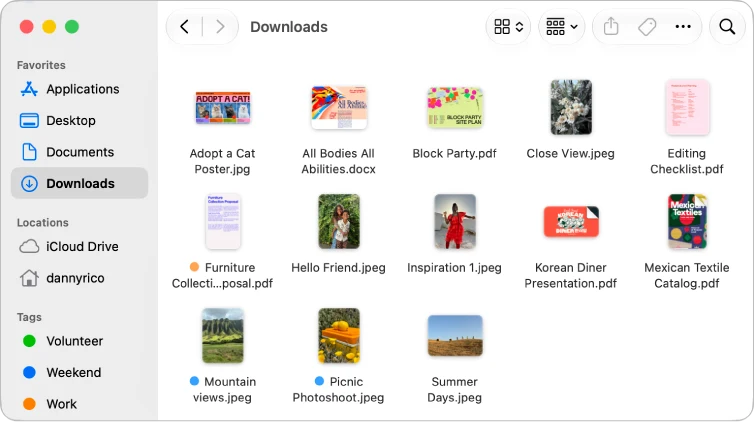
Apple’s conversion guide supports opening images together, selecting them in the sidebar and exporting them to the chosen format. Before applying the operation widely, try a small group containing the formats and dimensions in your real job.
Keep outputs in another folder and verify counts, names and several representative images. A contact sheet of thumbnails is not a proof that each export has the intended format, transparency or resolution.
When a batch deserves automation instead
If you repeat naming, resizing and routing rules every week, write those rules down first: input folder, accepted types, target dimensions, naming scheme and destination. Then decide whether a system automation or dedicated batch tool is the better fit.
A manual Preview workflow is reasonable for three images and tedious for three thousand. The threshold is the work and verification burden, not a claim that every batch must require paid software. Do not automate deletion of originals before the result is checked.
Bookmark a long PDF or present it as slides
For a page you will revisit, Apple documents Tools > Add Bookmark and View > Bookmarks. Use this for a working reading copy, for example the methods section and the appendix you repeatedly consult. It is different from designing a complete hierarchical table of contents for a publication.
For a ready-made PDF presentation, View > Slideshow displays the pages with navigation controls. Rehearse on the target screen and inspect page orientation and text size. Opening a PDF slideshow can avoid installing a separate viewer; building and revising the presentation still belongs in its authoring app.
Inspect GIF frames instead of assuming animation is broken
Apple describes Preview as a way to inspect an animated GIF’s individual frames. Show Thumbnails and expand the arrow beside the filename. To watch playback, its guide points to Finder Quick Look. A static frame in Preview therefore does not by itself mean that the GIF lost its animation.
Use frame inspection to identify a bad or repeated image in an asset someone supplied. Use a dedicated animation or editing tool when you need to rebuild timing, optimize the sequence or author a new animation. A still-image export should not be labeled an equivalent animated deliverable.
Soft-proof a color profile before changing the file
View > Soft Proof with Profile simulates a chosen device’s ColorSync profile without changing the image. This is a viewing check. Apple separately documents assigning a profile through Tools > Assign Profile and matching an image to a profile through its color-profile workflow; these operations should not be confused.
For a print handoff, ask the printer which profile and file specification it requires. Keep a master and make a separate delivery copy. A soft proof on an uncalibrated screen is not proof that a physical print will match exactly, and arbitrarily assigning a profile is not a repair for every color mismatch.
Use PDF filters and keyboard shortcuts deliberately
Apple’s PDF effects workflow applies a selected Quartz filter during export. Keep each filtered candidate separate and inspect small text and images; an effect intended for appearance is not automatically a compression or accessibility improvement.
For repeated viewing and editing, use the shortcuts listed for your installed Preview version rather than memorizing an old tutorial. Begin with ordinary open, find, print and zoom actions, then learn the few tool-specific commands you use repeatedly. The menu beside a command is a useful confirmation of its current shortcut.
View supported 3D files on current macOS
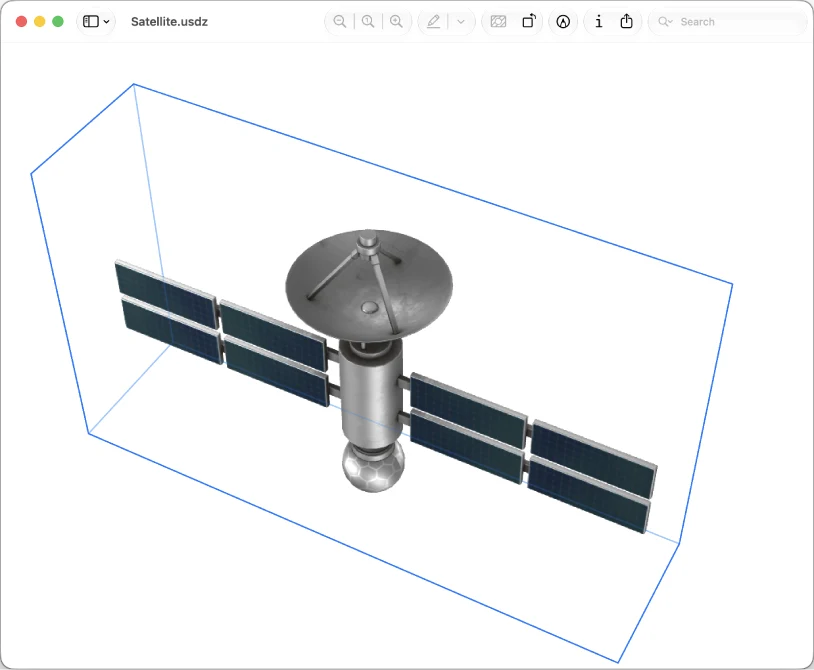
The current Apple guide documents opening supported 3D files, orbiting, panning and zooming, plus scene inspection tools. These are version-dependent features; use the guide selector for your installed system. A USD file can depend on other files in its folder, so retain the supplied package structure.
A model that looks wrong may have missing referenced assets rather than damaged geometry. Ask for the complete package before attempting a format conversion.
Viewing a model is not building a model
For an occasional look at a supplied 3D asset, a separate viewer may be unnecessary when Preview supports the file. For creating geometry, rigging a character, authoring an animation or controlling a production render, use a dedicated 3D workflow.
Changing a viewport angle is not the same operation as permanently changing an object’s geometry. Keep the source package and distinguish a viewing screenshot from a modified deliverable.
Make a repeatable finishing checklist
For each recurring task, keep three things: the original, the exported result and a short record of settings. Choose representative checks before the batch: a transparent image, a tall image, an uncommon format or a large file.
If the task cannot be verified reliably with that small process, the next investment should be a better workflow rather than another similarly named utility. Use the capability matrix to identify the missing function.
Limitations & considerations
- Menu names and availability depend on the installed system or app version; the linked documentation is the reference for current controls.
Use the linked official pages for current platform, access and purchase conditions.
Sources & scope
Reviewed October 25, 2026. Provider facts are attributed in each section. Examples, decision rules and quality checks are iApp4Me editorial guidance. Screenshots are credited provider illustrations unless a separate observation is explicitly identified.
- Apple: inspect document information
Official documentation; feature and version scope checked October 25, 2026.
- Apple: revert document changes
Official documentation; feature and version scope checked October 25, 2026.
- Apple: convert image formats
Official documentation; feature and version scope checked October 25, 2026.
- Apple: view 3D files
Official documentation; feature and version scope checked October 25, 2026.
- Apple: PDF bookmarks
Apple documentation for the adjacent advanced workflow; version scope checked October 25, 2026.
- Apple: PDF slideshow
Apple documentation for the adjacent advanced workflow; version scope checked October 25, 2026.
- Apple: animated GIF frames
Apple documentation for the adjacent advanced workflow; version scope checked October 25, 2026.
- Apple: soft proof with a profile
Apple documentation for the adjacent advanced workflow; version scope checked October 25, 2026.
- Apple: apply an image color profile
Apple documentation for the adjacent advanced workflow; version scope checked October 25, 2026.
- Apple: PDF effects
Apple documentation for the adjacent advanced workflow; version scope checked October 25, 2026.
- Apple: Preview keyboard shortcuts
Apple documentation for the adjacent advanced workflow; version scope checked October 25, 2026.

No comments yet. Be the first to share your experience.