Preview Text Guide: Search PDFs, Copy from Images and Know When You Need OCR
A readable page, selectable text and a saved searchable PDF are three different things.
The short answer
Search an existing text PDF with Preview’s Find controls and use Live Text for supported images. If you need a persistent searchable scan, batch recognition or layout-preserving Word conversion, verify that exact output or use a dedicated OCR/conversion tool.
Identify the document before diagnosing selection
A PDF can contain actual text, page images or a mixture. A page that looks like a paragraph may still be a photograph of one. Try a known word on two different pages and note whether the problem affects the whole file or only some scans.
Example: a digitally generated cover sheet plus scanned appendices can have searchable first pages and unsearchable later pages. A successful search on the cover does not prove that the entire packet has a text layer.
Search existing PDF text
Use Preview’s search field for a distinctive word or phrase and inspect the result list. Apple documents phrase and whole-word options in the search controls. When several similar terms occur, use surrounding context and the actual page, not just the result count.
For a research note, record the page with the quotation and verify punctuation against the document. Search is a navigation tool, not evidence that an extracted quotation preserves every character.
If text will not select, check the tool and permissions
Apple’s troubleshooting first checks Tools > Text Selection and document permissions through the Inspector. An authorized opening or copying password may be required. Do not label every selection failure an OCR failure.
If the file is image-only, a selection tool cannot manufacture original text objects. Determine whether your installed system can recognize the content and whether its output is adequate for your next task.
Use Live Text on an image for a small extraction
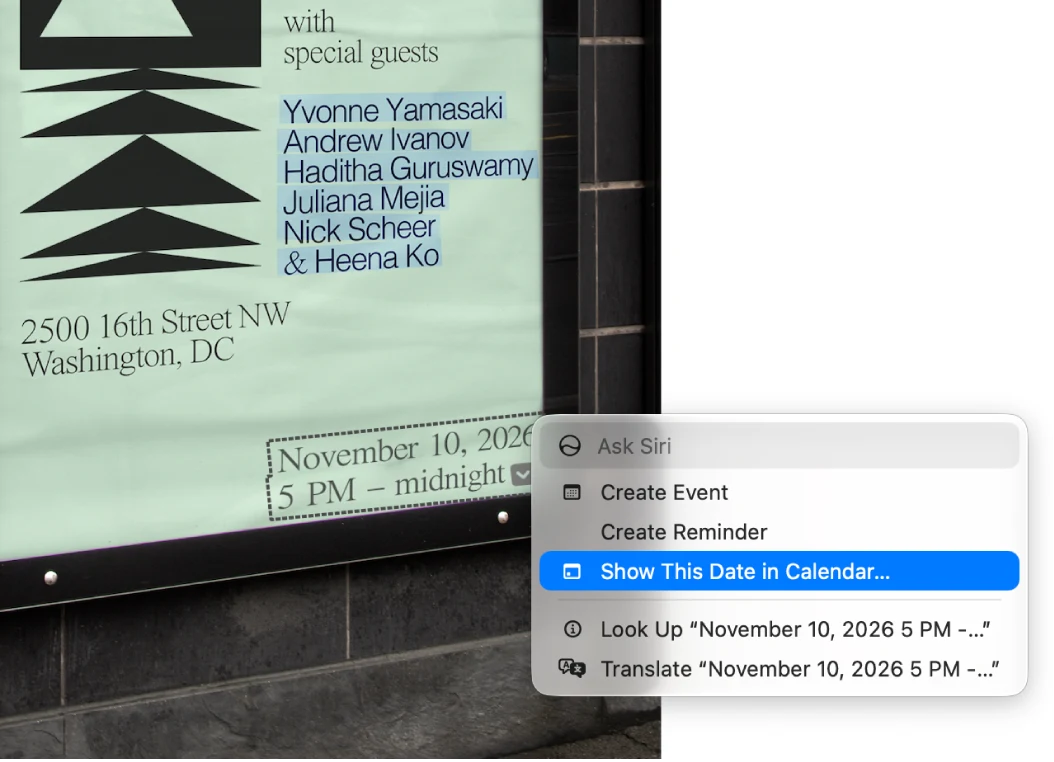
Apple documents selecting text in supported photos in Preview, copying it and using contextual actions such as translation or opening a detected link. Feature availability varies by language and region.
For a photographed reference number, copy it into a temporary note and compare every character, especially zero/O, one/l and punctuation. Never rely on an automatically recognized number solely because it can be pasted.
Recognition is not the same as a saved searchable archive
Being able to interact with text on screen does not, by itself, establish that a saved PDF contains a persistent searchable text layer. If your installed Preview export offers text-related options, verify the exported result independently rather than inferring behavior from the selection highlight.
A useful check is to open the exported PDF in another viewer, search several known phrases on different pages and copy text from a difficult scan. Preserve the original until the destination behavior is established.
OCR and Word conversion solve different output requirements
OCR attempts to recognize characters in images. Word conversion also tries to reconstruct an editable document structure. Neither should be described as identical to adding a note or text box in Preview.
If the goal is correcting one sentence, ask for the original source file. If the goal is searching hundreds of scanned pages, choose a documented batch OCR workflow. If the goal is reusing a complex table, inspect the converted rows and columns rather than judging only its visual appearance.
Choose by the scale of the work
For one sign or a short image extract, Live Text may avoid installing a standalone recognition utility. For repeated scans, multilingual recognition, structured extraction or controlled archive output, a dedicated tool can be justified.
Acrobat and other PDF/OCR products are candidates to research for the precise output. Check platform and purchase conditions; a mobile feature list is not proof of the corresponding Mac capability.
Verification checklist for text reuse
Check several pages, not just the title. Compare a normal sentence, a small caption and a table or number. Keep a note of language, source quality and which file was checked.
If recognition is unreliable, request a better scan or the original document. Repeatedly exporting an unclear page does not restore details that were not captured.
Limitations & considerations
- Menu names and availability depend on the installed system or app version; the linked documentation is the reference for current controls.
Use the linked official pages for current platform, access and purchase conditions.
Sources & scope
Reviewed October 25, 2026. Provider facts are attributed in each section. Examples, decision rules and quality checks are iApp4Me editorial guidance. Screenshots are credited provider illustrations unless a separate observation is explicitly identified.
- Apple: find text in PDFs
Official documentation; feature and version scope checked October 25, 2026.
- Apple: text selection troubleshooting
Official documentation; feature and version scope checked October 25, 2026.
- Apple: Live Text in photos
Official documentation; feature and version scope checked October 25, 2026.

No comments yet. Be the first to share your experience.