Tasks & time
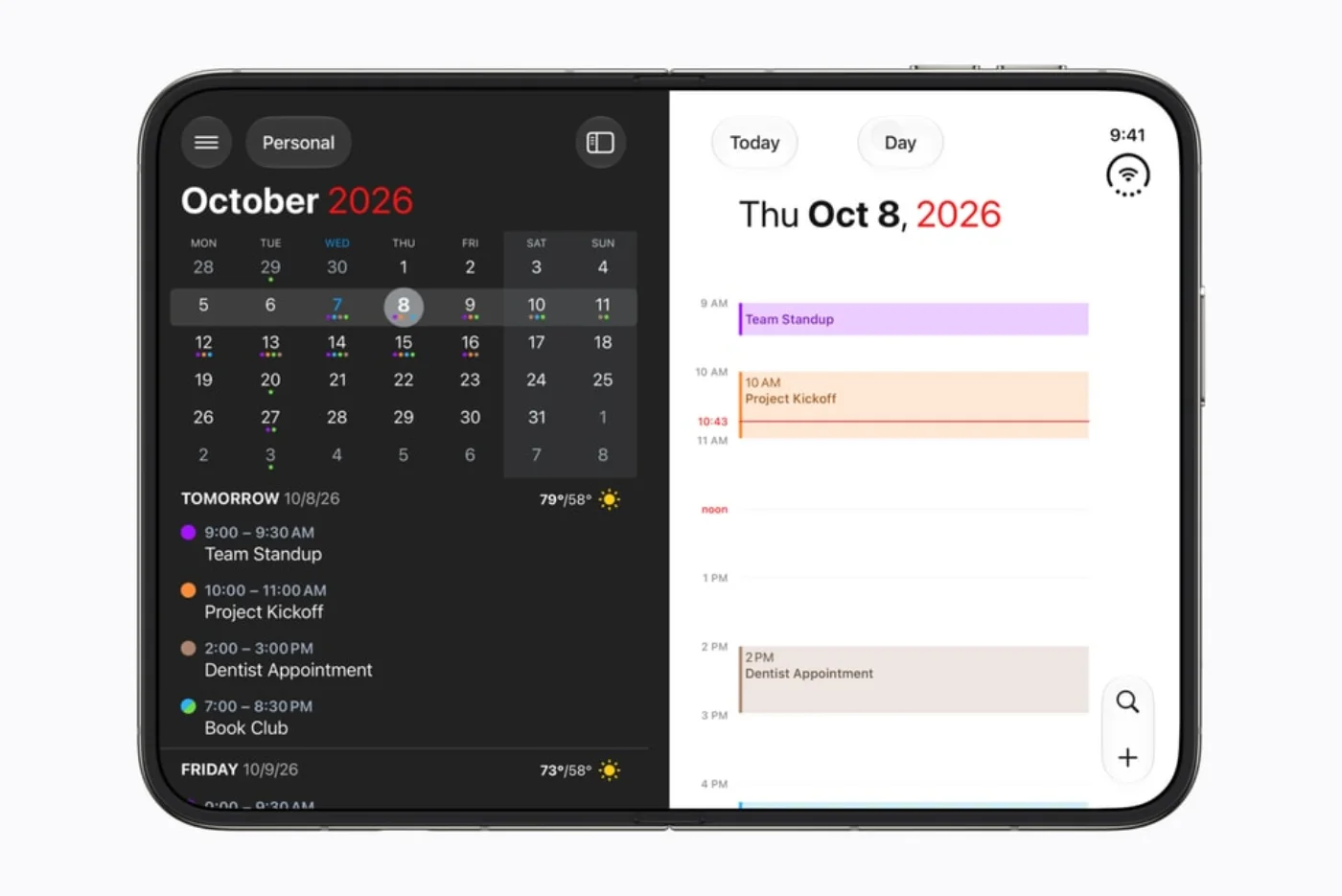
Bring calendar appointments, actionable tasks and notes into one daily planning view.
Choose 24me when calendar events, tasks and notes need to live in one personal planning workflow. Start with Apple Calendar and scheduled Reminders if you only need dated actions beside events. Email-to-task and location reminders are reasons to consider Premium, not assumed free features.
Research reviewed
Free download; optional paid features. See feature and purchase boundaries below.
Abyss Expedition centers on a choice that continues after a good weapon has appeared: finish what remains on the loot board or replace the board. Compare its remaining items and full-clear reward with the requirements for moving on. Bag arrangement and equipment fusion support the build you choose to pursue.
Research reviewed
Free with ads and optional randomized-item IAP. US examples: Remove Ads $5.99; other listed items $0.49–$69.99. This is not a total spending cap.
Consider AcornBox when screenshots contain information you need to find again, such as a booking reference or address. Its separate library, text search and reminders offer a focused workflow; keep a backup plan because local storage does not provide a cloud recovery service.
Research reviewed
Free download with US purchases: $1.99/month, $12.99/year or $29.99 lifetime. Free limits and exact paid-feature boundaries were not established.

PDF & document tools
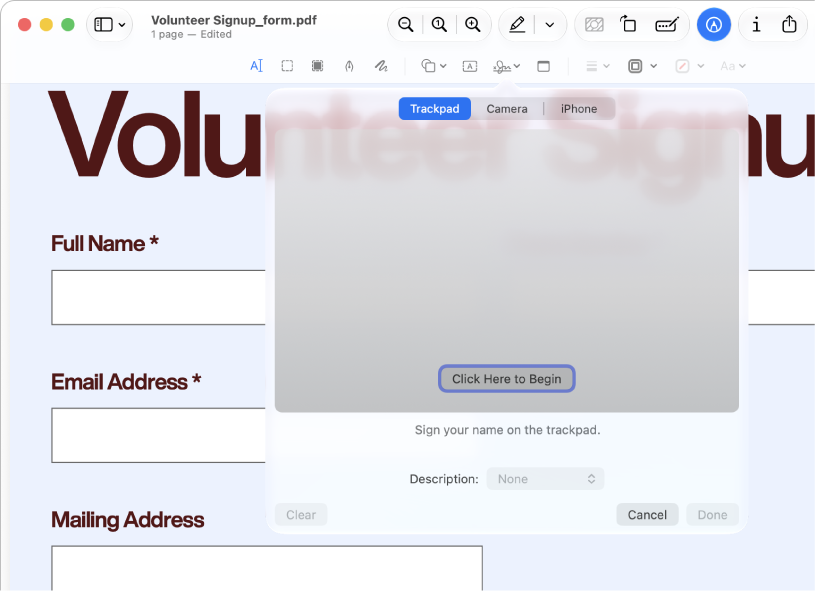
A mainstream PDF reader with free basic document interactions and separately paid editing and conversion capabilities.
Shortlist it when other people already exchange documents through Acrobat, or you need a familiar PDF reader with an upgrade path.
Research reviewed
Free reader · paid Premium offers
Shortlist AI Family Locator for a family that wants an agreed location-sharing circle on supported iPhones. Check how an invitation is accepted and how to stop sharing before relying on a map. Compare the iPhone Premium scope with the separately sold browser map: a web pass does not establish access to every app feature, and entering a phone number does not reveal its location.
Research reviewed
Free iPhone map after accepted sharing; Premium for history, place alerts and other extras, amount unknown. Separate web passes: $4.99 for one number or $19.99 unlimited, paid once.
Consider AI Image Animator for experimenting with short motion from a photo or illustration without installing an editor. Use material you can upload and share, and inspect the credit cost and visibility setting before generation. We did not generate or score any video.
Research reviewed
Free starter/reward credits; paid monthly examples: $9.90/800 credits, $13.90/1,500 or $39.90/5,000. Cost per generation varies; private visibility and commercial use depend on plan.

Reading & learning
Apple’s reading library and bookstore; a useful baseline before paying for a specialist reader.
Try the included reading app before adding another service for ordinary ebook reading.
Research reviewed
Free reader · books sold separately
AppStop may help someone who wants a deliberate pause at the moment they open a distracting app. It combines selected Screen Time restrictions with a short challenge and a timed access window. Begin with a few low-stakes targets so you can understand its emergency-pass and permission behavior.
Research reviewed
Free 3 selected items and 1 daily emergency pass. US Lifetime Pro $14.99 adds unlimited items/passes and advanced rules.
ASCII Lab may suit a mobile creator who wants to compare visual treatments on existing media and return to an edit later. Previewing a video is free, but exporting it requires Pro. Current description and older product images disagree on effect counts, so this guide uses the current written scope and labels the imagery as publisher examples.
Research reviewed
Free: 11 effects and 1080px PNG exports; video preview free, export Pro-only. US Pro: $4.99/week, $29.99/year or $49.99 lifetime; eligible weekly/yearly plans describe a 3-day trial.
Choose Avela Meds when a reminder alone is not enough: you also need to record what happened and reconcile that record with stock on hand. Its separate purchase and restock steps address a practical inventory distinction. Start with the free scope and inspect the Pro boundary before paying; notification delivery still depends on iOS settings, and the app does not choose a prescription or dose for you.
Research reviewed
Free download. US Avela Pro Lifetime: $9.99 once. Some advanced features and exports need Pro; exact free limits and the complete feature split are not publicly specified.
Shortlist Bella and Pan for a child who enjoys a story alongside arithmetic practice. Choose a difficulty by the skills the child is working on, use the optional animated working when a question needs explanation, then let the child retry it. The one-time purchase and offline play suit families who want a contained activity; this is supplemental practice rather than a complete curriculum or a teacher-reporting system.
Research reviewed
US App Store: $4.99 one-time purchase for the full adventure and Apple Watch mini game. No ads, in-app purchases or subscription.
Shortlist BilingualBoost for guided Spanish practice around situations such as a café order or a phone message. Listen to a model, read the support and try a reply, then return to saved expressions. Start with the free activities and book sample before choosing a one-time unlock. The prepared material works without optional AI; generated practice needs a compatible device and remains fallible.
Research reviewed
Free download. US one-time purchases: Advanced Practice $4.99; ¡Hola! Digital Textbook $19.99; Complete Course $24.99, including both. No subscription.
Brindle Bounce may suit a player looking for short vertical-platforming attempts with a small cast of characters. The current store recommends Touch controls and also offers Tilt in Settings; the website foregrounds tilt. Try the control preview before judging whether the movement fits you.
Research reviewed
Free with ads and optional IAP. Listed US outfit purchases cost $1.99 each; full free-progression and purchase boundaries remain unverified.
Consider Bulk Watermark for applying a consistent visible mark across a batch of photos and clips. Start with varied bright and dark examples and inspect every saved file. A watermark provides attribution or a visible label; it does not guarantee protection from copying.
Research reviewed
Free to try. US Premium unlock: $2.99 once. The publisher describes Pro as removing limits without a subscription; confirm current entitlement.

Audio, video & subtitles
An open-source desktop route to offline speech transcription and timed subtitle files.
Consider it when inspectable software and subtitle export matter more than a commercial transcript workspace.
Research reviewed
Free open-source software
Journaling & memory keeping
A general design tool with scrapbook templates, photo uploads and editable page elements.
Shortlist Canva when you want a template-led design and control over its contents. It is an alternative way to make a journal page, not a dedicated diary archive. Canva also has AI tools: this is a workflow comparison, not an AI-versus-no-AI distinction.
Research reviewed
Free tier; individual Pro web snapshot US$144/year before tax, checked Oct 18, 2026. Regional and in-app offers can differ; premium assets are not all free.

Audio, video & subtitles
Organize personal videos and choose a compatible external playback route.
Choose CarScreen when personal files and supported links need one library with playlists and external-screen options. For a single clip, try its existing player and AirPlay controls first. CarPlay itself is audio-only, and output compatibility depends on the source and receiver.
Research reviewed
Free download; optional paid features. See feature and purchase boundaries below.
Music practice
Follow cello pitch and review a focused practice passage.
Choose Cello Tuner & Intonation to connect live pitch feedback with cello fingerboard exploration and practice review. The free tools cover basic feedback; Pro is more relevant for guided exercises and complete take history. Treat the display as a practice aid alongside listening, not a replacement for a teacher.
Research reviewed
Free pitch feedback and basic practice tools; Pro adds guided exercises and complete history. Monthly, yearly or lifetime.
Shortlist ChessElite if you want a small, one-time-purchase chess app for solo play without an account or subscription. Its advertised beginner guidance and difficulty choices provide a clear starting point. The strength of its opponents and the usefulness of tactical challenges remain untested, so the listing should not be read as a coaching or engine-quality verdict.
Research reviewed
US App Store: $0.99 once. France: €0.99. Official description says no ads, subscription or account; no in-app purchase is listed.
C
AI & assistants
Claude Duet fits invited US Pro or Max subscribers who want ongoing work using supported Claude account context.
Claude Duet fits invited US Pro or Max subscribers who want ongoing work using supported Claude account context. It is a phone-based research preview backed by a cloud computer; its briefings and background activity consume the same plan allowance as chat.
Research reviewed
Included in invited US Pro/Max research-preview access; background work shares plan usage limits.

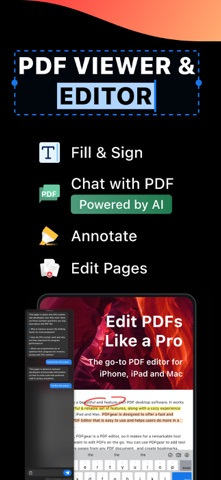
 PDF Extractor
 PDF Expert

 PDFgear