Step-by-step guide
How-to guide
Oct 28, 2026
Explore 224 recommended apps across 92 everyday tasks and 16 domains. Every task includes 3–5 recommendations. Open an app profile for product introductions, platform information and official links.
How-to guide
Oct 25, 2026
Preview is more than a file viewer. Start here for everyday PDF and image work, then use the task chapters for the exact workflow. Install another app when the job needs capabilities such as original PDF-content editing, controlled OCR output, advanced design or managed document workflows.
How-to guide
Oct 25, 2026
Try Preview first for reading, page assembly, basic markup, visible signatures, supported image conversion and simple cutouts. Install another tool when the requirement is original-content editing, dependable OCR output, specialized signing, library management, advanced design or repeatable production work.
How-to guide
Oct 25, 2026
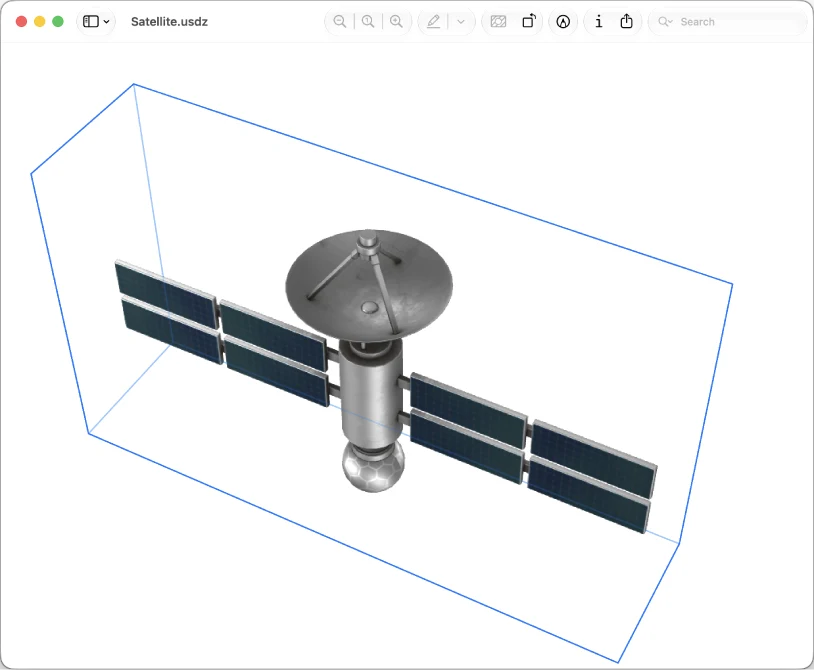
Preview is useful for inspecting file information, recovering available document versions, processing a small selected image set and viewing supported 3D files on current systems. None of those features turns it into a full archive, automation engine or 3D authoring suite.
How-to guide
Oct 25, 2026
Preview can print selected pages, arrange pages on a sheet and export supported files. It can also work with supported scan/import routes. Decide whether you need a physical print, a flattened viewing copy or a reusable source before choosing the command.
How-to guide
Oct 25, 2026
Search an existing text PDF with Preview’s Find controls and use Live Text for supported images. If you need a persistent searchable scan, batch recognition or layout-preserving Word conversion, verify that exact output or use a dedicated OCR/conversion tool.
How-to guide
Oct 25, 2026
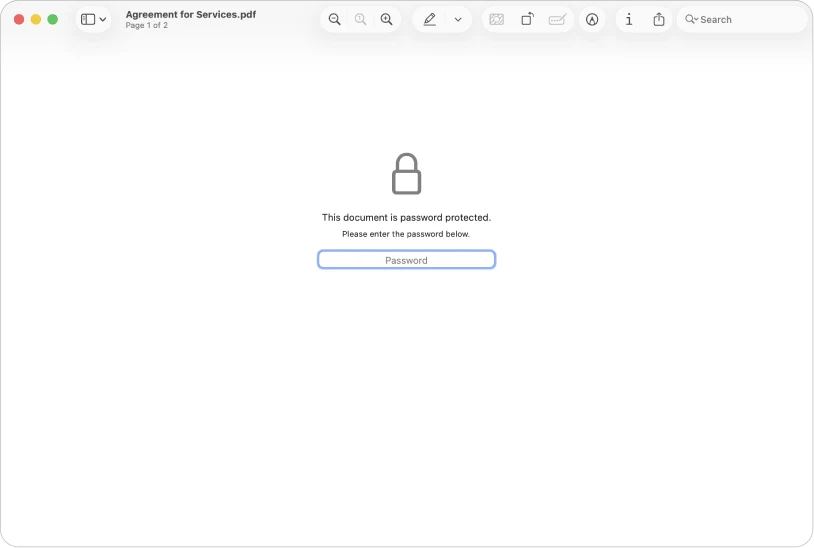
Use the actual Redaction Selection tool for supported text removal, not a black rectangle or crop. Use PDF password settings when the recipient needs restricted opening. Verify the saved copy; Preview is not a complete document-sanitation or managed-signing system.
How-to guide
Oct 25, 2026
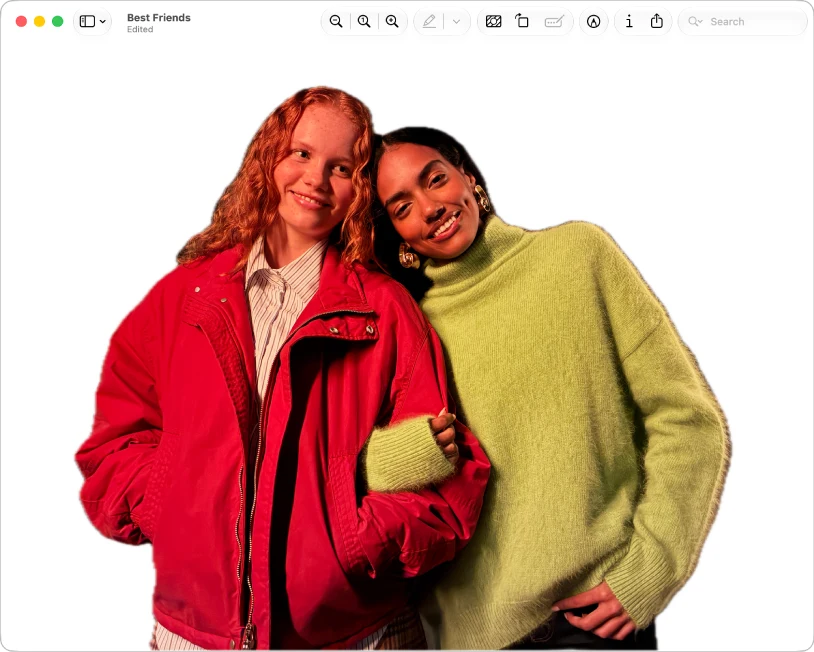
Use Preview for basic image geometry, format conversion, simple markups and supported background removal. Decide the required pixels, transparency and output format first. Move to a dedicated editor for layers, precise masks, restoration or complex design.
How-to guide
Oct 25, 2026
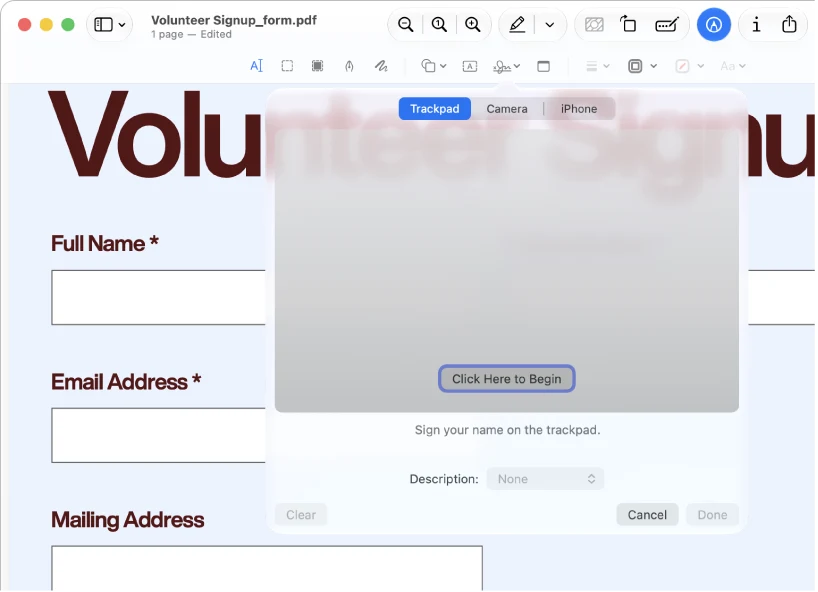
Preview can fill supported form fields, place text boxes and visible signatures, and add reading annotations. It cannot edit the existing body text of a PDF. Keep an editable working copy and inspect the saved result in the viewer the recipient uses.
How-to guide
Oct 25, 2026
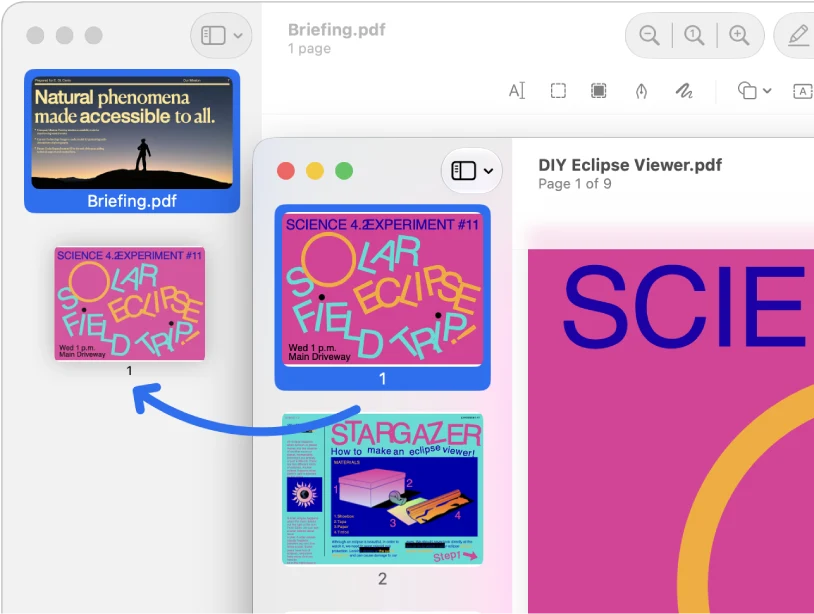
Use Preview’s thumbnail sidebar to assemble and rearrange PDF pages. Duplicate the originals first, then verify the saved packet. Page operations can replace a simple merger or splitter; they do not turn Preview into a full content editor.
How-to guide
Oct 25, 2026
Start on a device where the PDF still opens. Confirm it is a stored attachment, check upload and storage errors, then check the iPad download. Reference data and PDF files sync separately; resetting the library is not the first fix.
How-to guide
Oct 25, 2026
Keep the original, compare actual byte sizes and stop processing the larger copy. Preview’s filter can produce an unhelpful result; use a new candidate from the original, a better source scan, an accepted split or a more configurable compressor.