How-to guide
Oct 25, 2026
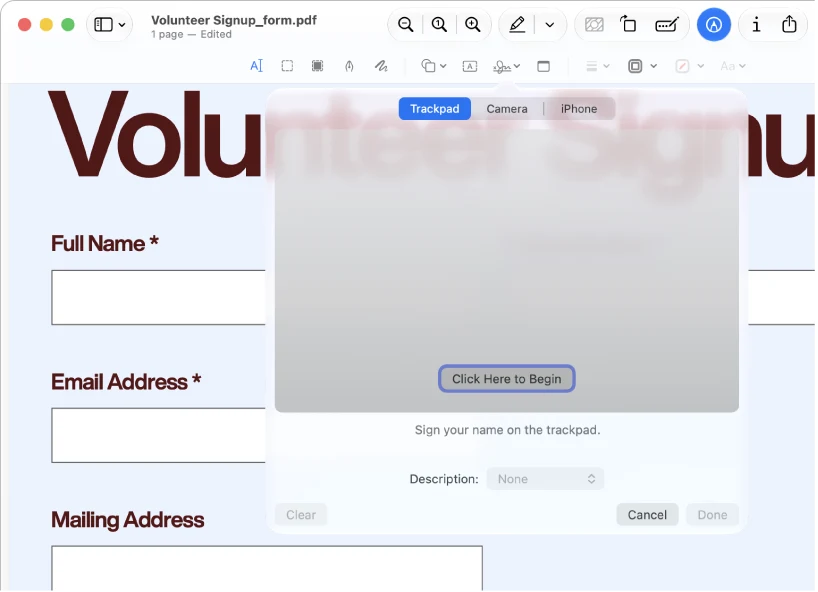
Export a separate PDF with Preview’s Reduce File Size filter, then compare the saved file with the original. Keep the smaller copy only if the text, diagrams and required fields remain usable.
 PDF Extractor
 Step-by-step guide
How-to guide
Oct 24, 2026
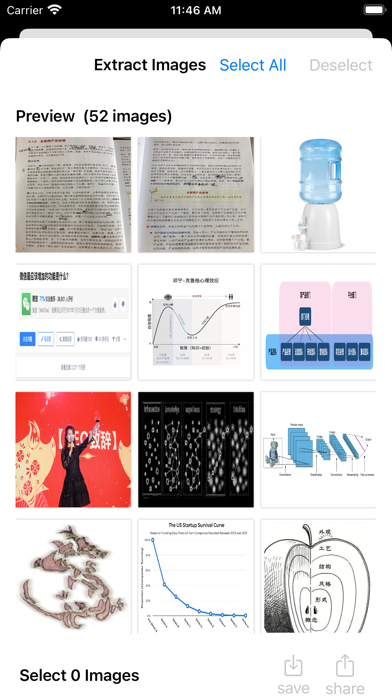
Choose Markdown for text-first notes, HTML for content you need to inspect in a browser, and RTF for formatted text exchange. PDF Extractor 1.02 lists all three. Pick the format for the next editing tool, not as a shortcut to an identical copy of a PDF page.
PDF Extractor Step-by-step guide
How-to guide
Oct 24, 2026
Use PDF Extractor 1.02 or later to convert a PDF into a .docx document, then open that file in your preferred Word-compatible editor. Treat conversion as the start of editing: keep the PDF and check the saved result before relying on it.
PDF Extractor Step-by-step guide
How-to guide
Oct 24, 2026
PDF Extractor 1.02 adds document conversion and extends its stated workflow to Mac as well as iPhone and iPad. Its useful new role is recovering content you want to edit—not replacing a complete PDF editor.
 PetaNote
 Step-by-step guide
How-to guide
Oct 18, 2026
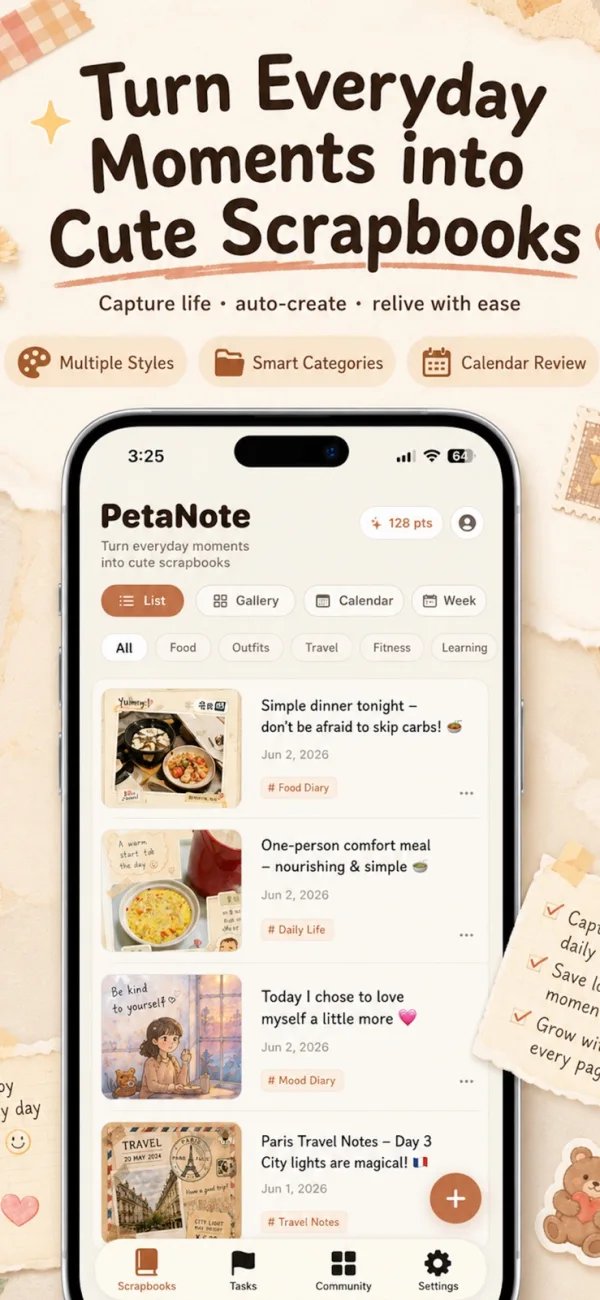
PetaNote documents a photo-and-note workflow for generating a scrapbook-style image. Start with one event, provide the details that matter, review the result and save a copy. This guide explains that method; the task overview compares it with manual layouts and photo diaries.
 MacWhisper
 Step-by-step guide
How-to guide
Oct 18, 2026
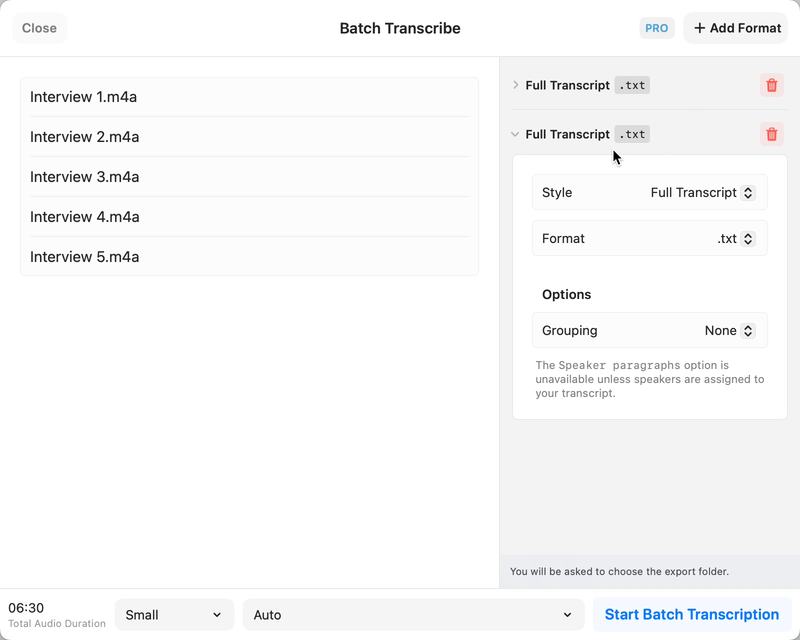
Choose a local model for a local interview workflow, leave optional cloud actions disabled, and review names and speaker turns against the recording. MacWhisper’s official documentation describes the workflow; optional integrations are separate processing choices.
 NetNewsWire
 Step-by-step guide
How-to guide
Oct 18, 2026
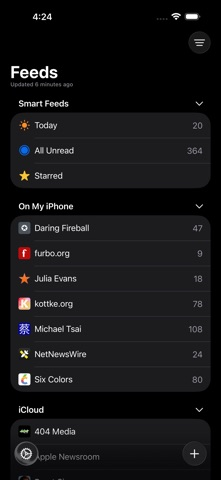
Add a website or direct feed address, choose the intended account and folder, then check that items arrive. The linked detailed help targets 6.1, while the current listing is version 7; use the equivalent controls in your installed version.
 Scanner Pro
 Step-by-step guide
How-to guide
Oct 18, 2026
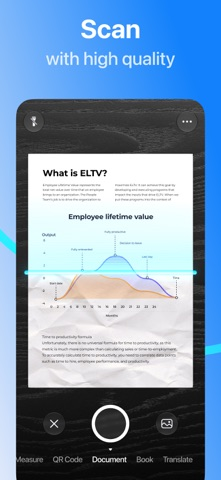
Capture the document, review the image, enable the appropriate OCR language and export a PDF. Reopen it elsewhere and search a known phrase. Our current workflow is sourced from Readdle documentation, not a completed device test.
 GoodLinks
 Step-by-step guide
How-to guide
Oct 18, 2026
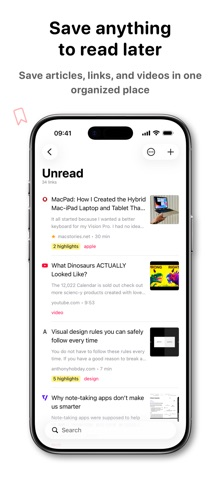
Use the GoodLinks share extension to save an article you can access, inspect the saved body, then reopen that copy offline before relying on it. These steps follow the official saving instructions.
 PDFgear
 Step-by-step guide
How-to guide
Oct 18, 2026
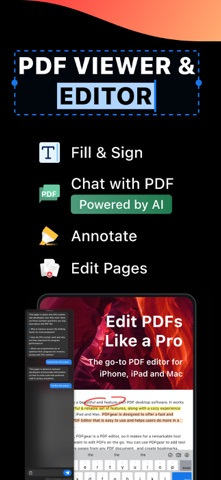
According to PDFgear’s iOS guide, open Tools → Merge PDFs, add the documents, arrange their order and merge. The saved PDF appears highlighted in Files; open it before sharing.
 TinyStudio
 Step-by-step guide
How-to guide
Oct 18, 2026
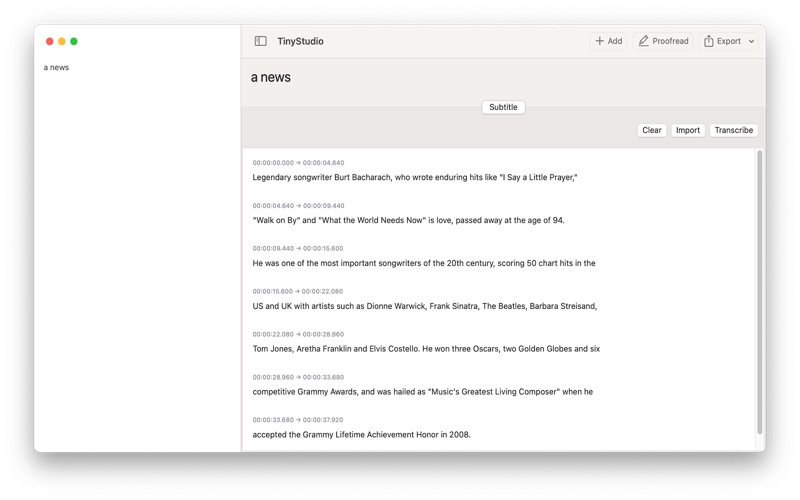
Use this draft as a preparation and verification checklist for a TinyStudio subtitle run, not a claim that we have executed the latest app. The intended result is a corrected, timed subtitle file that plays with your video.
 LumaFusion
 Step-by-step guide
How-to guide
Oct 18, 2026
Start with three short clips, one title and a defined export target. Follow the linked LumaFusion reference guide for import, assembly and export, then check the finished movie outside the editor.